QATS HELP CENTER

Get to know QATS.
From first sign-in to payout.

Step-by-step help for challenges, trading, risk, Funded accounts, the API, and affiliates. Find your task and open the right screen directly.

ONE TASK AT A TIME

What would you like to do?

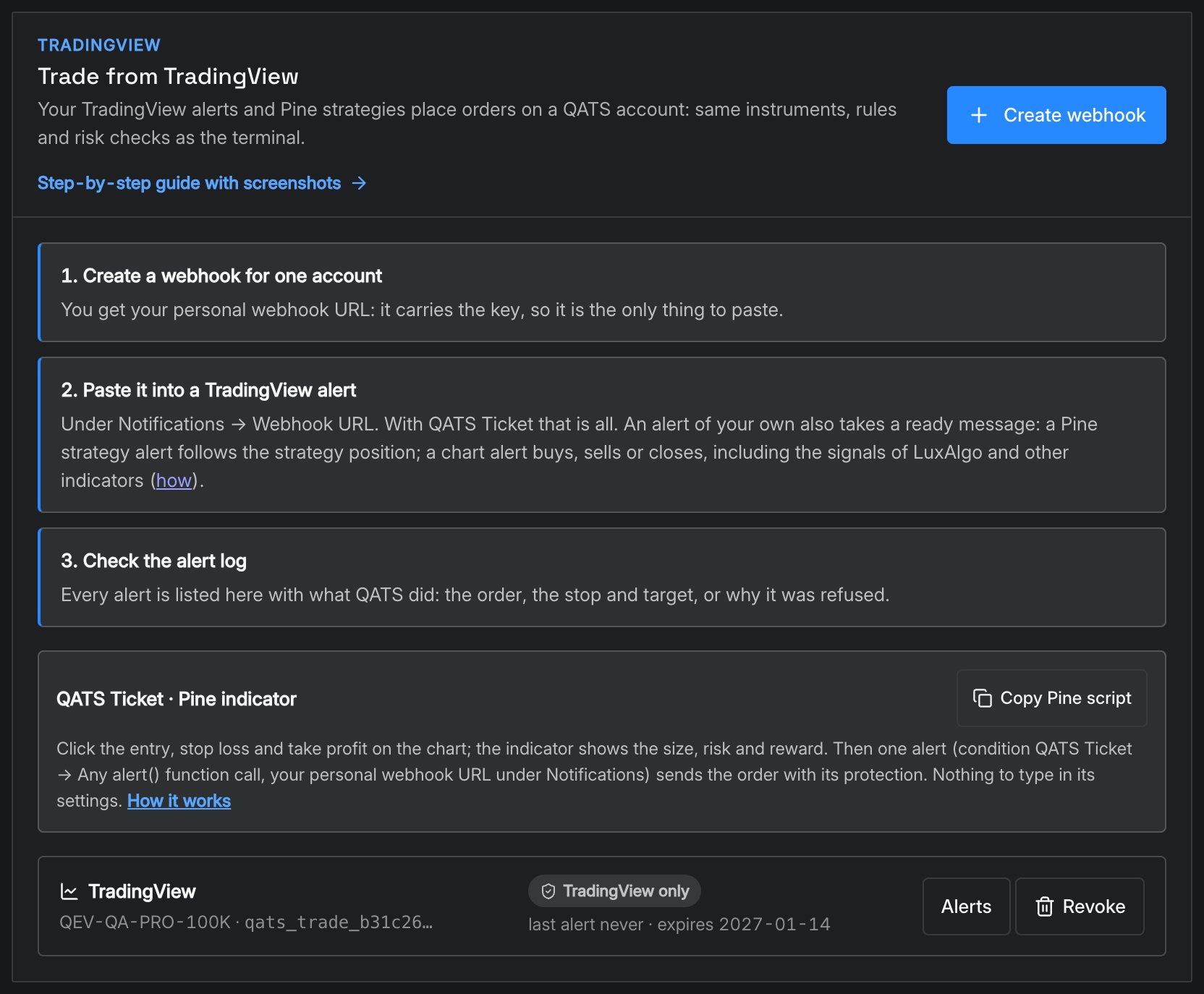
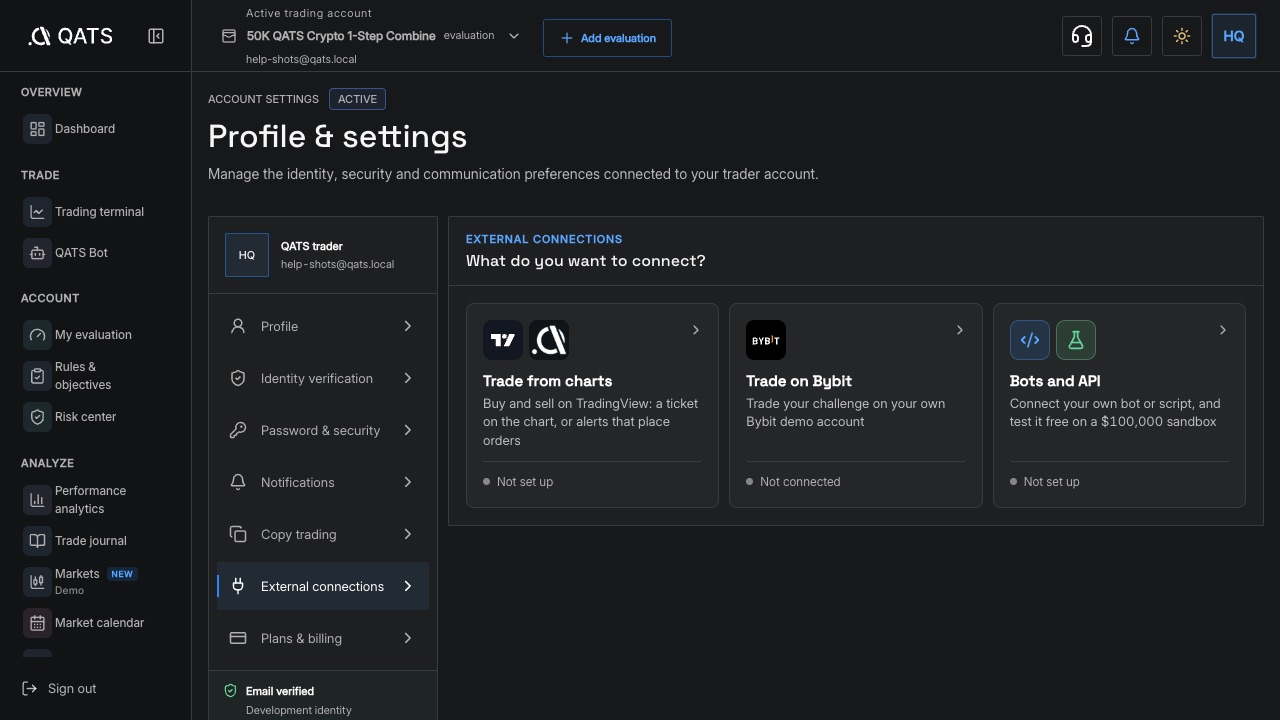
ILLUSTRATED GUIDETradingView → QATS: from alert to tradeConnections, ready-made messages, Pine strategies, signal history, and troubleshooting. Screenshots show exactly where to click.Open the guide QATS External connections with TradingView settings

QATS LIBRARY

Explore all topics

63 guides

Getting started

Sign up, choose a program, and find your way around the dashboard.
6
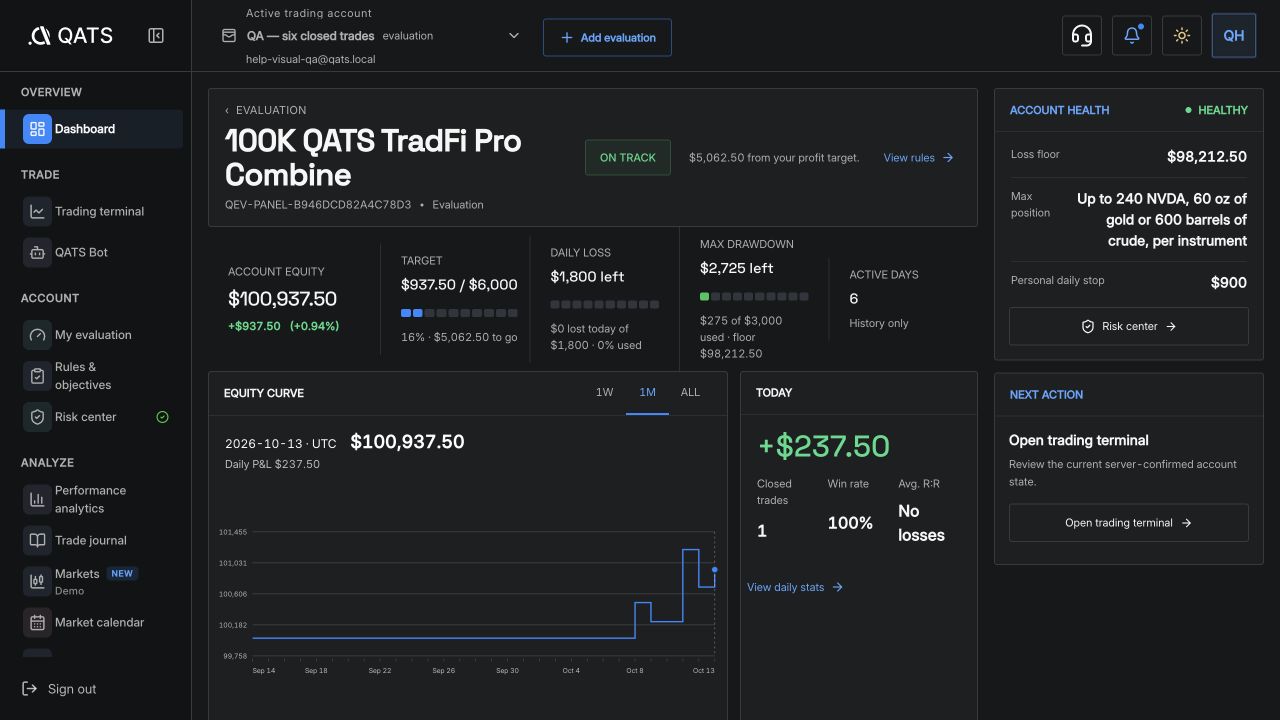
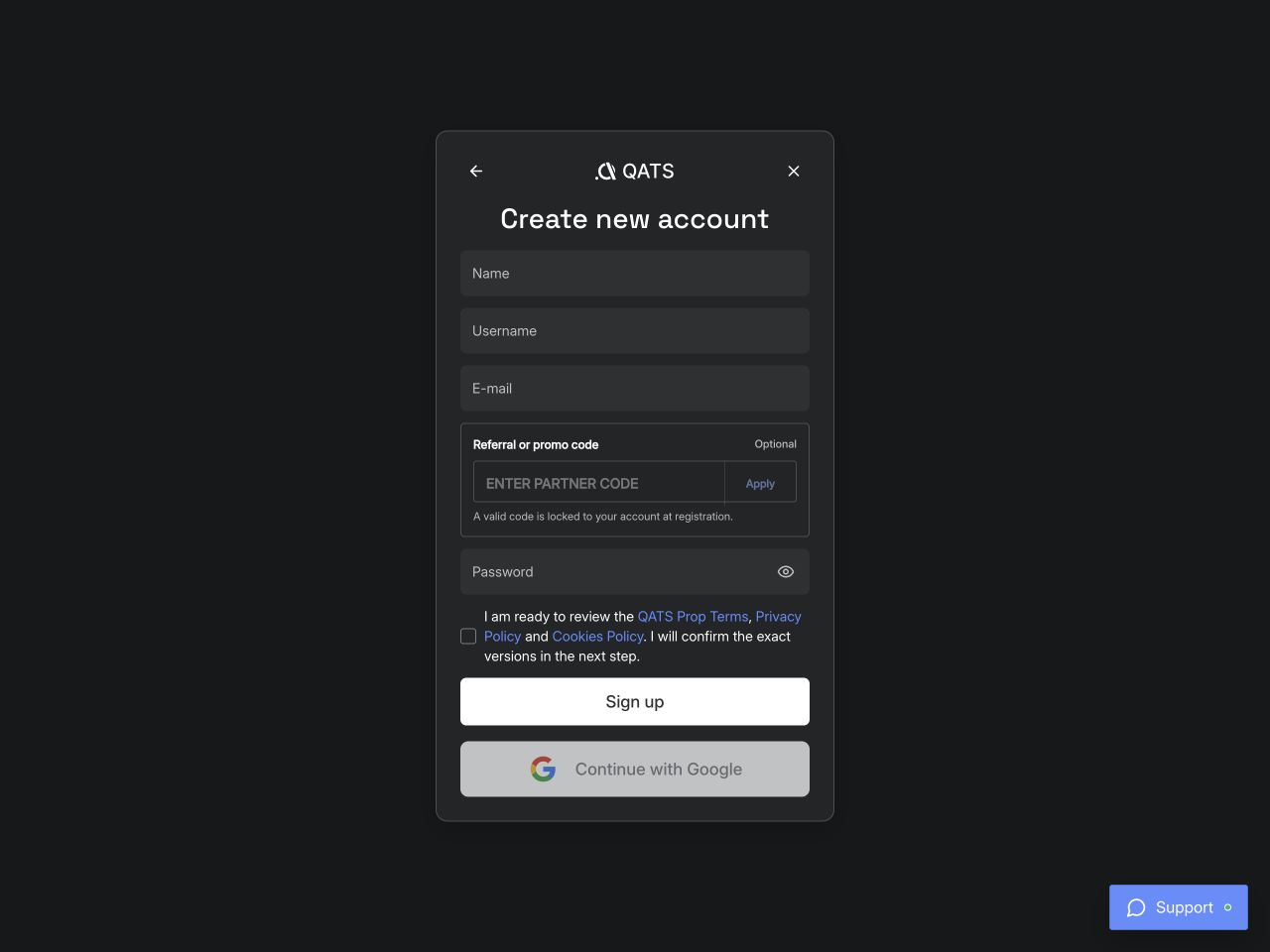
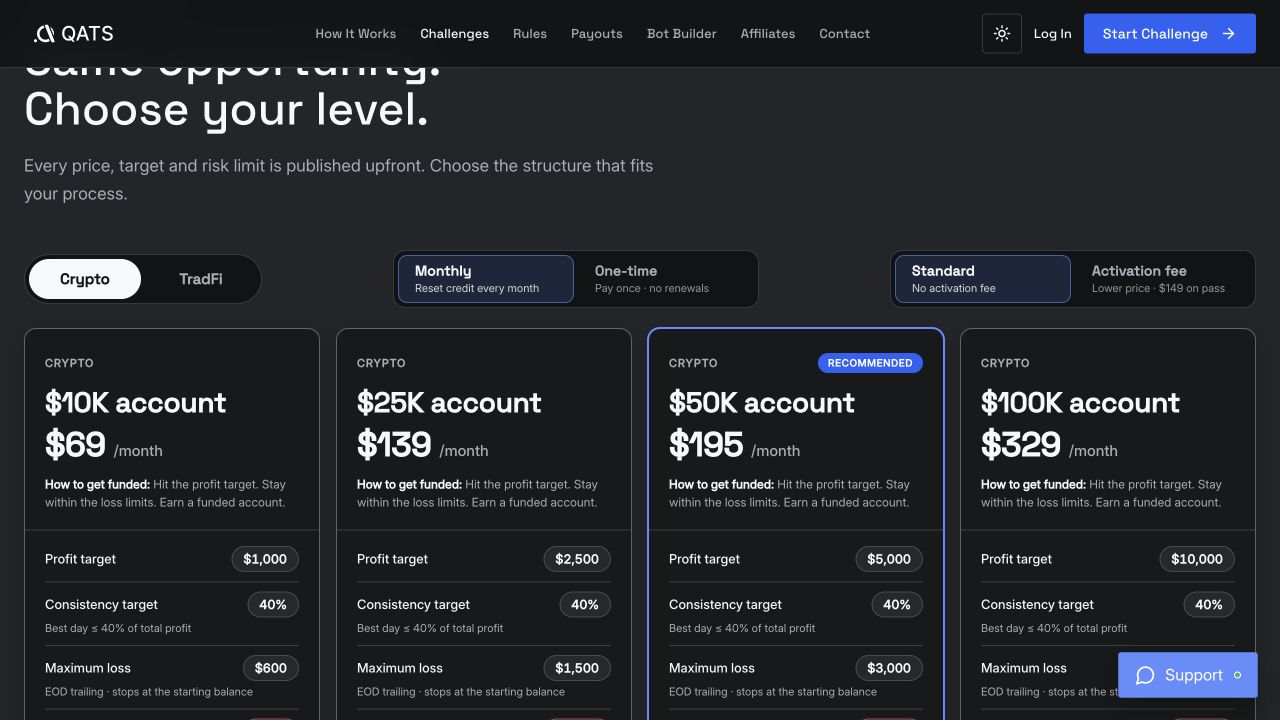
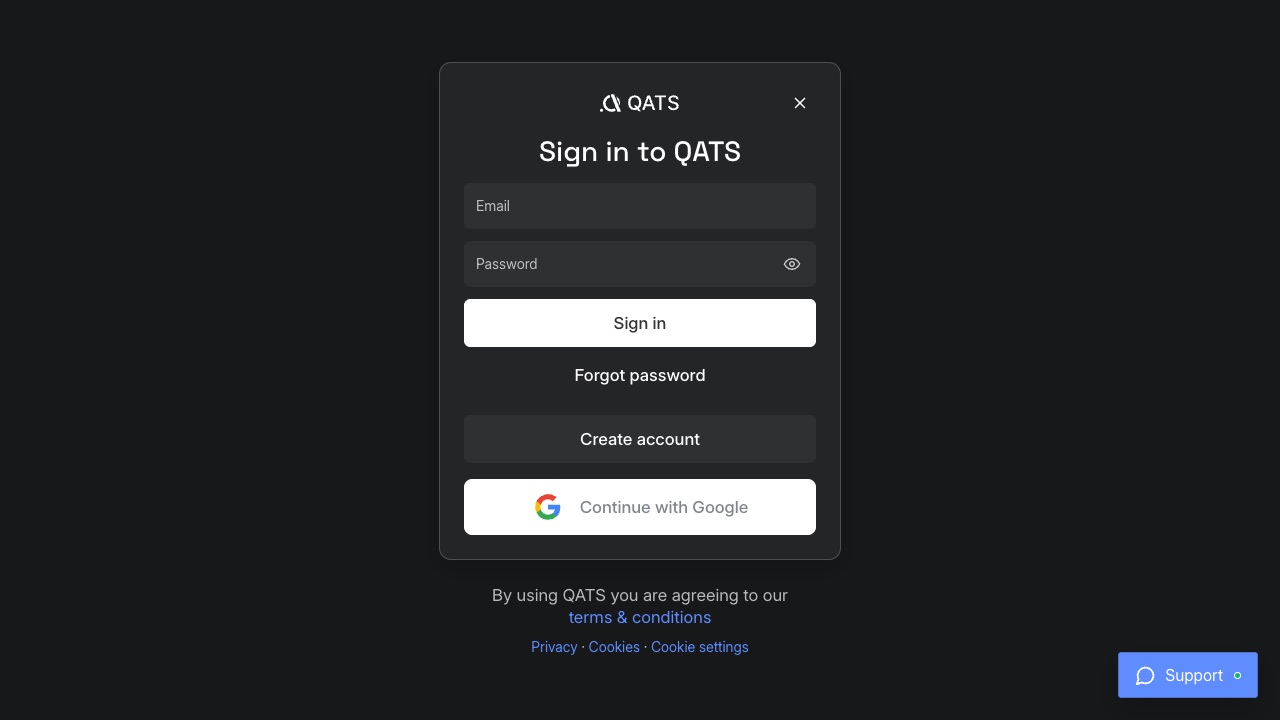
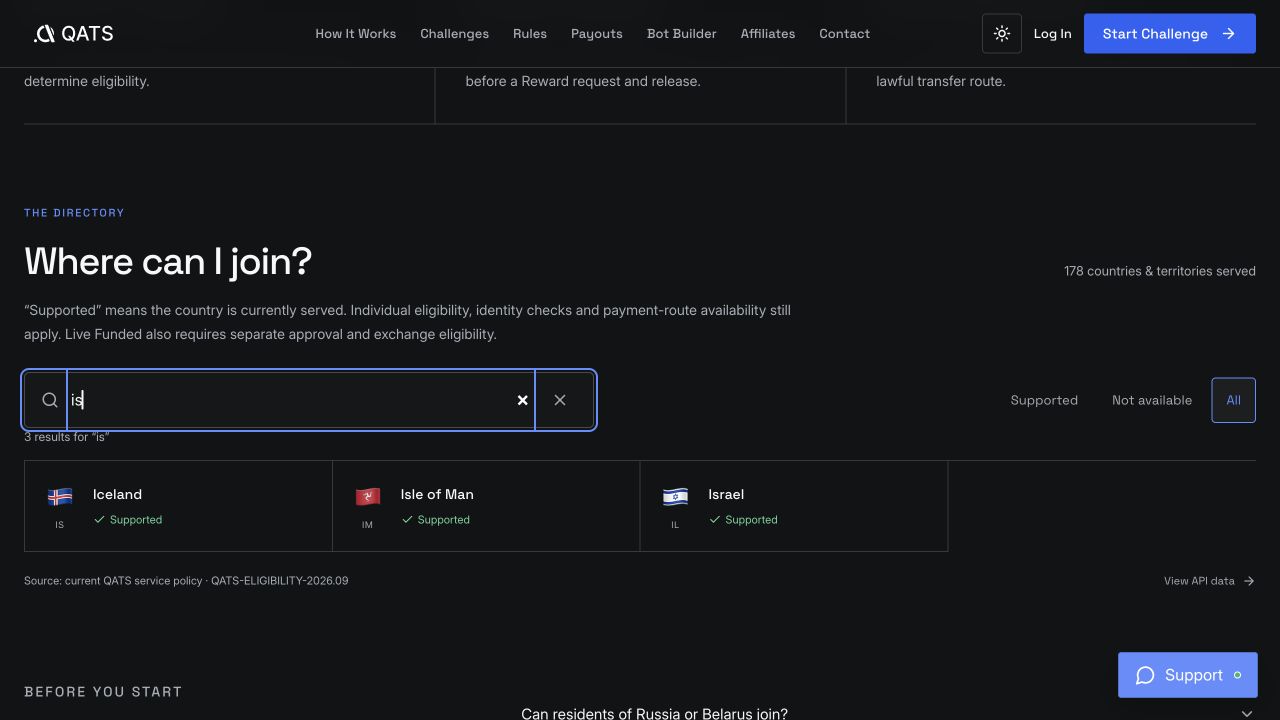
ILLUSTRATED GUIDECheck whether your country is supportedCheck residence before purchase, then understand KYC and payout checks.ILLUSTRATED GUIDETrading terms in plain EnglishBalance, equity, orders, fills, margin, drawdown and payouts without jargon.ILLUSTRATED GUIDECreate an account and sign inRegister, sign in, or recover a forgotten password to return to QATS.ILLUSTRATED GUIDEChoose a challengeCompare markets, account sizes, prices, and rules before paying.ILLUSTRATED GUIDEUnderstand your dashboardFind equity, targets, loss limits, and your next step.ILLUSTRATED GUIDESwitch trading accountsAvoid placing an order or sending an API command to the wrong account.

Challenges & billing

Plan terms, payments, renewals, refunds, resets, and evaluation stages.
6
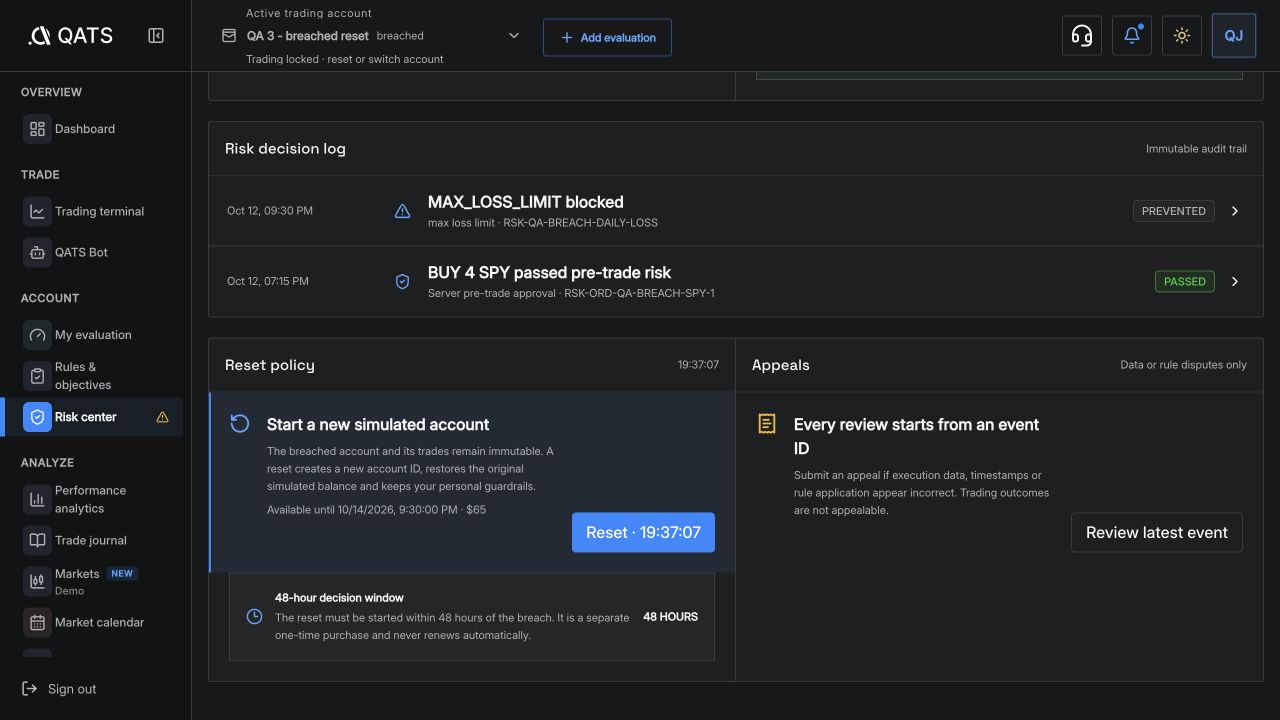
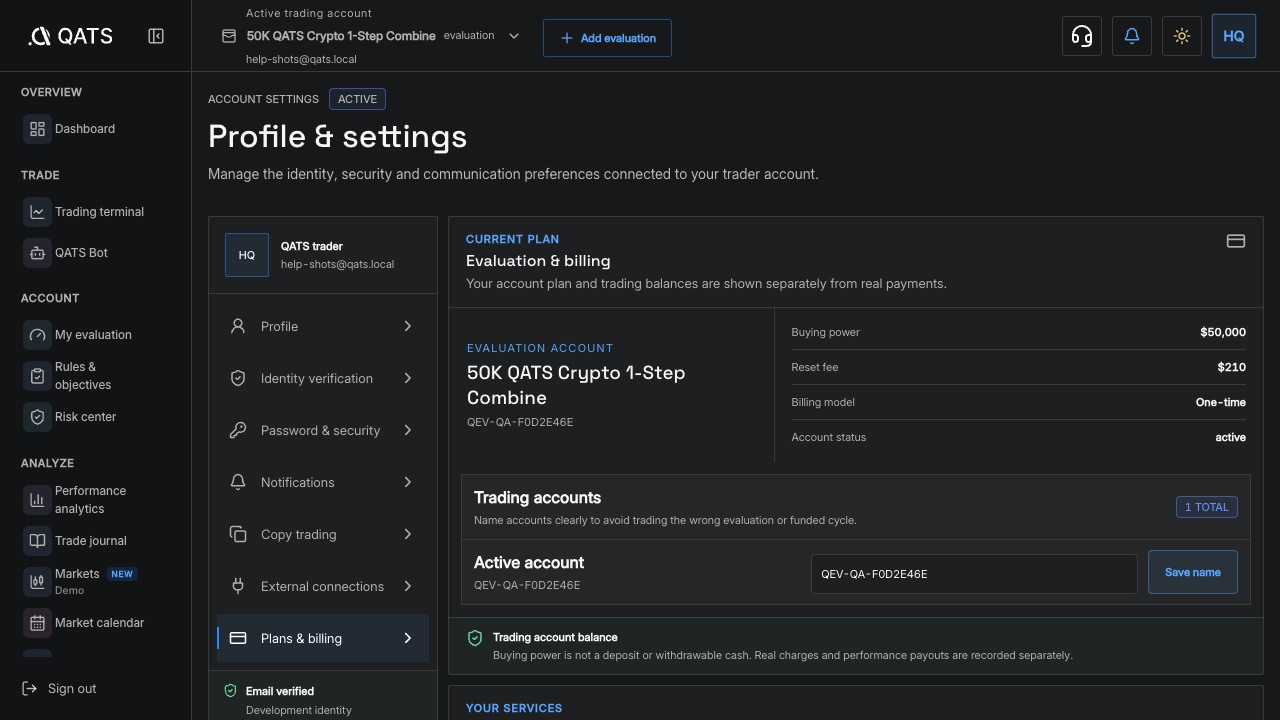
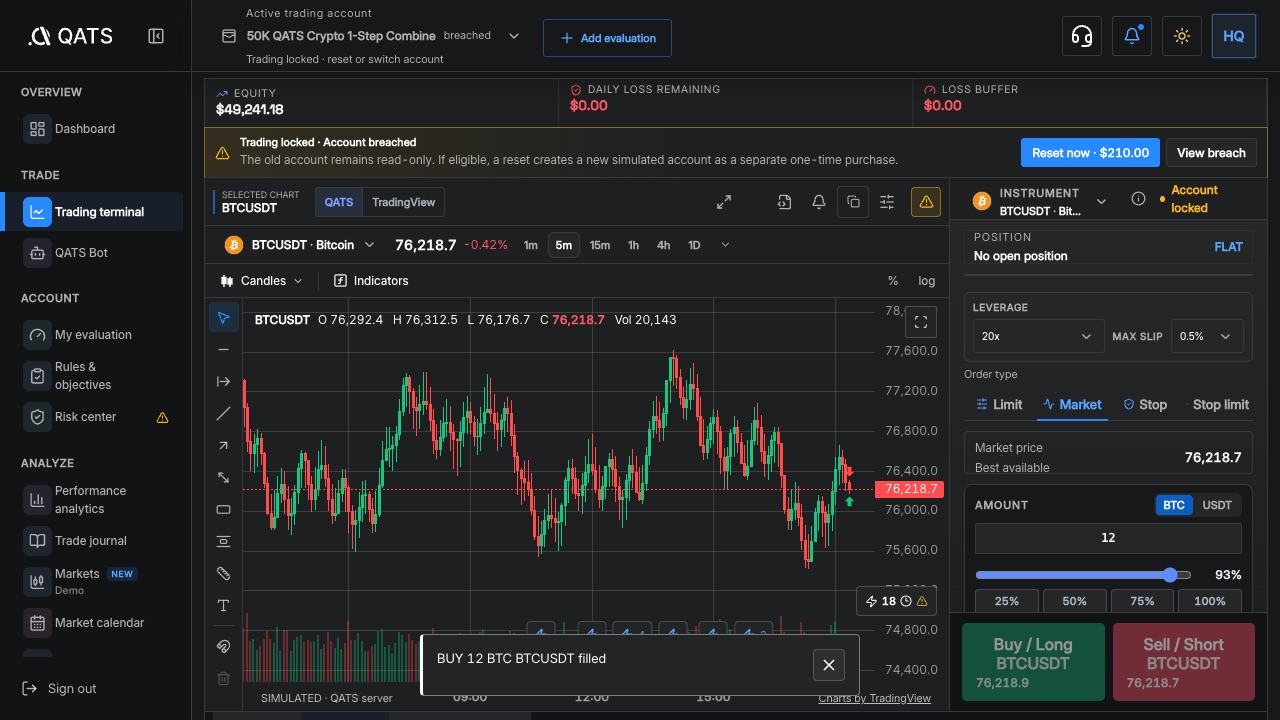
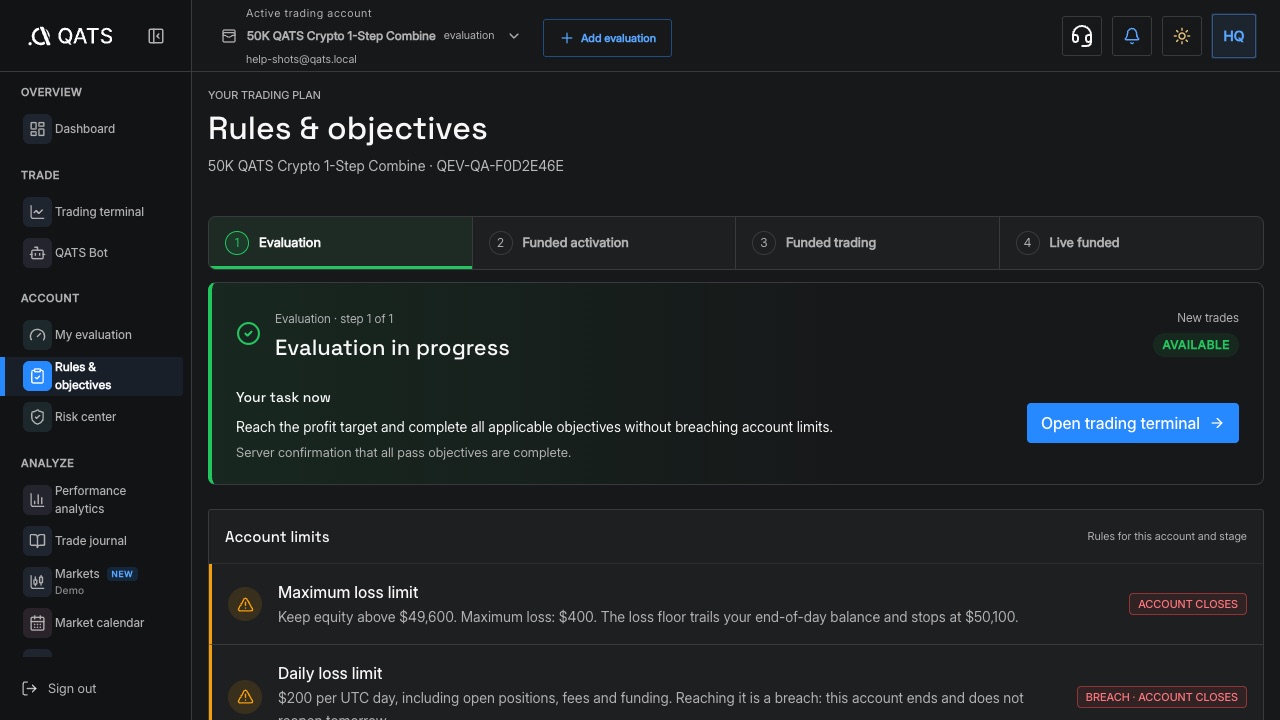
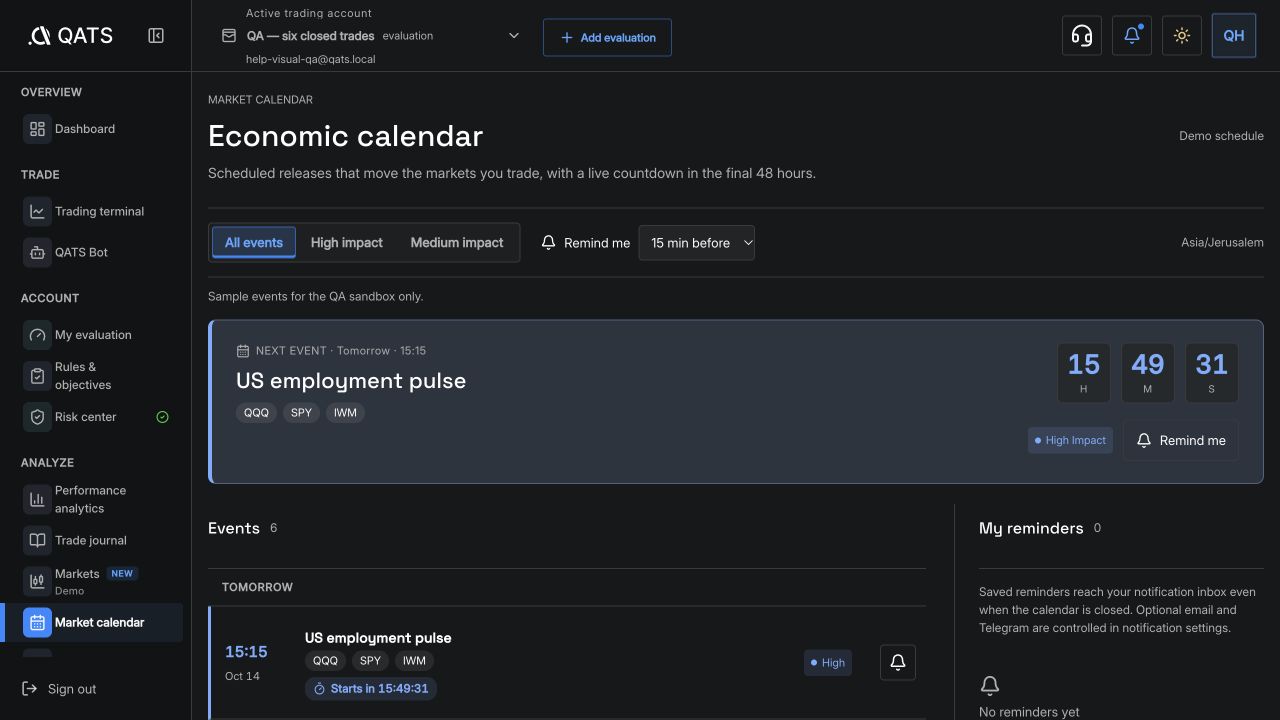
ILLUSTRATED GUIDEUnderstand the QATS stagesEvaluation, simulated Funded, and separate selection for Live Funded.ILLUSTRATED GUIDEFind the rules for your planUnderstand why account terms may differ from another plan card.ILLUSTRATED GUIDERenew a monthly planWhen renewal is due and what happens if a month is unpaid.ILLUSTRATED GUIDEReset an Evaluation accountPaid resets, reset credits, and the new account created afterward.ILLUSTRATED GUIDEWhat to do after a rule breachFind the breach reason and any available recovery path.ILLUSTRATED GUIDEPayments, receipts, refunds and chargebacksHow checkout works, where receipts appear, how to cancel, and what a refund or chargeback changes.

Trading

The terminal, orders, leverage, hotkeys, the QATS chart and scripts, and refusal messages.
19
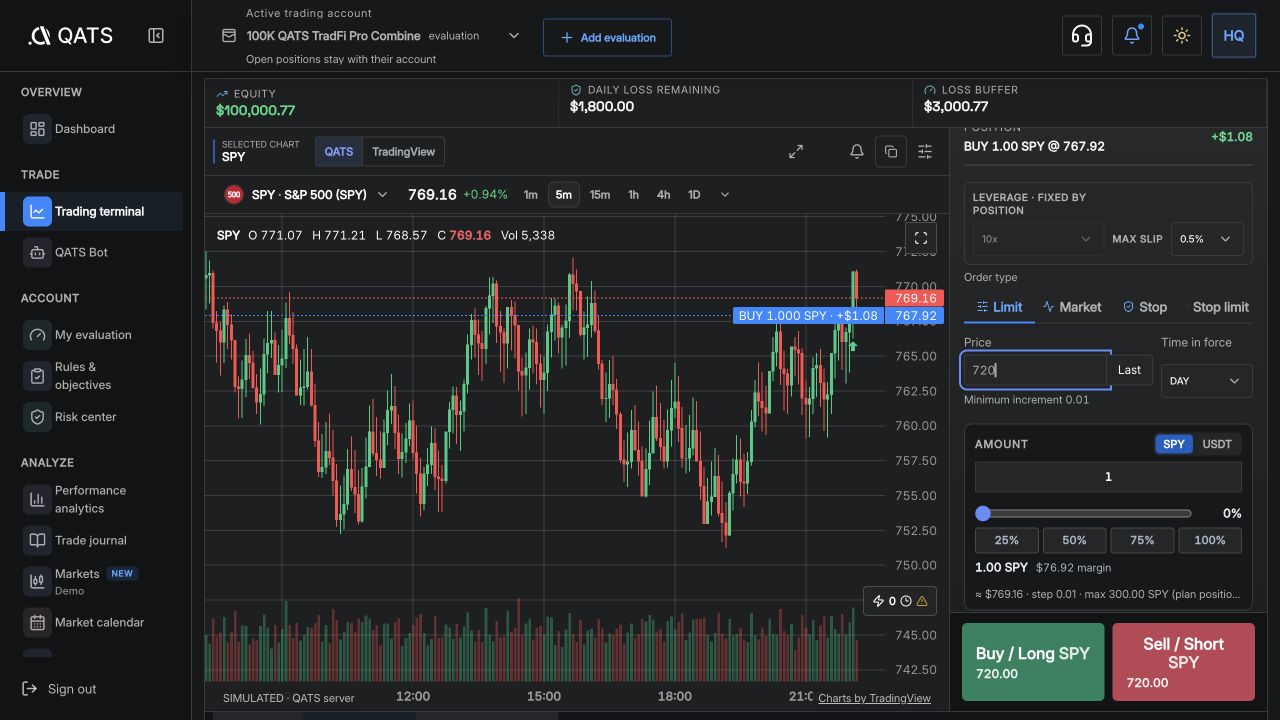
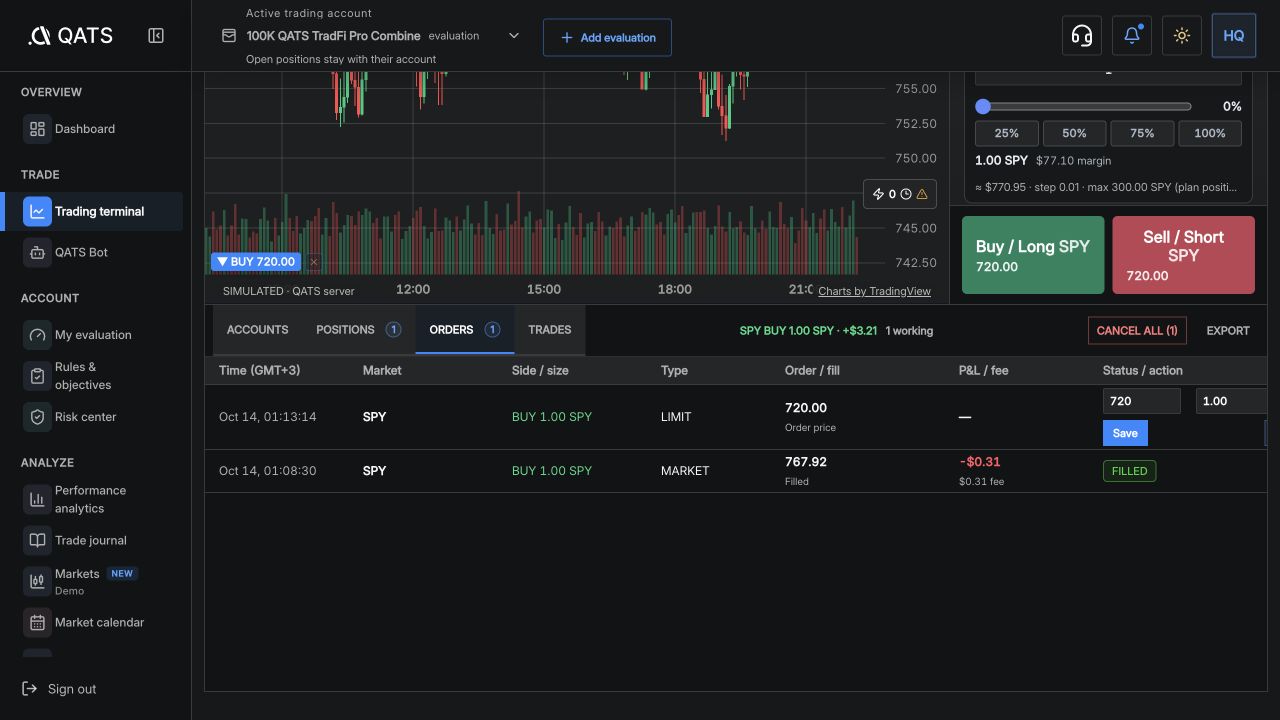
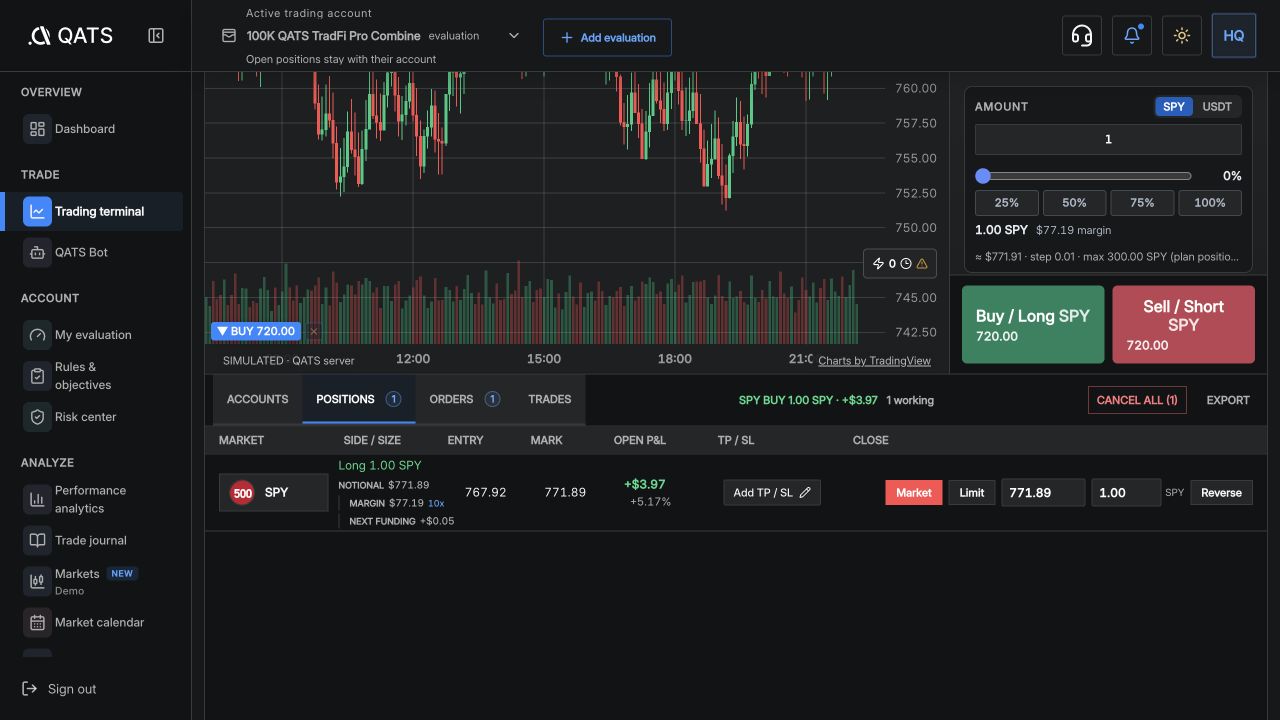
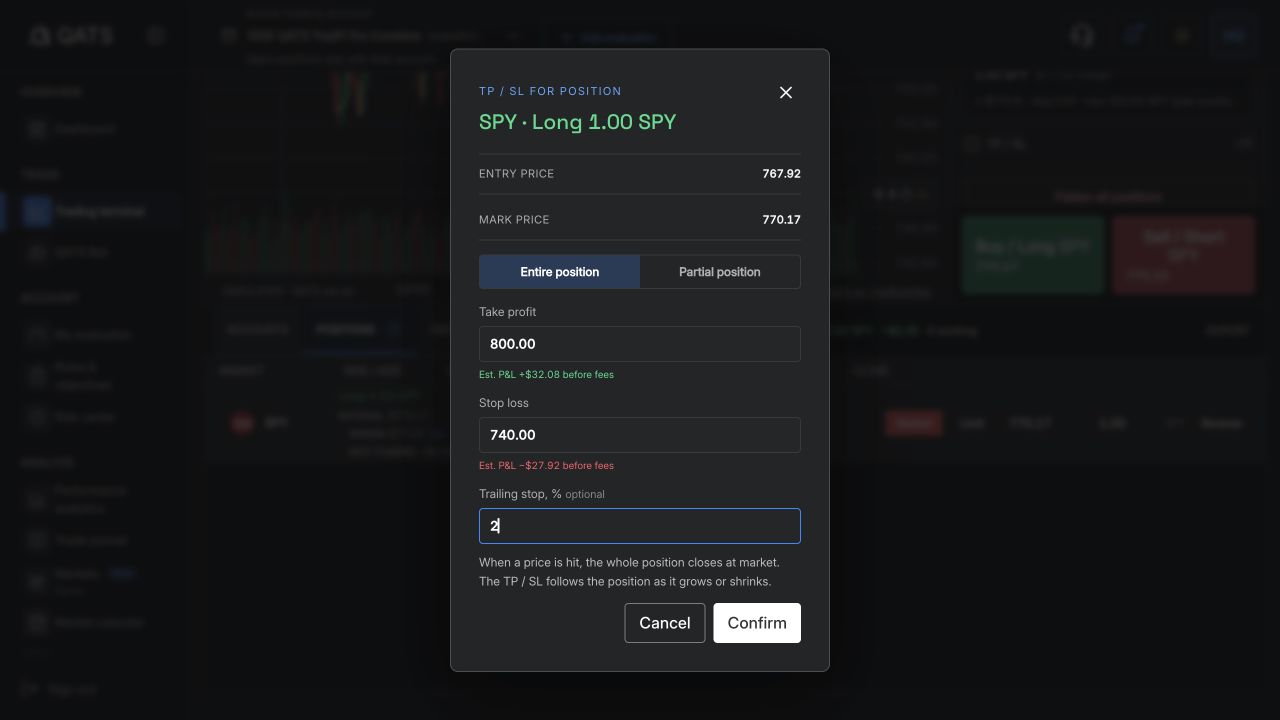
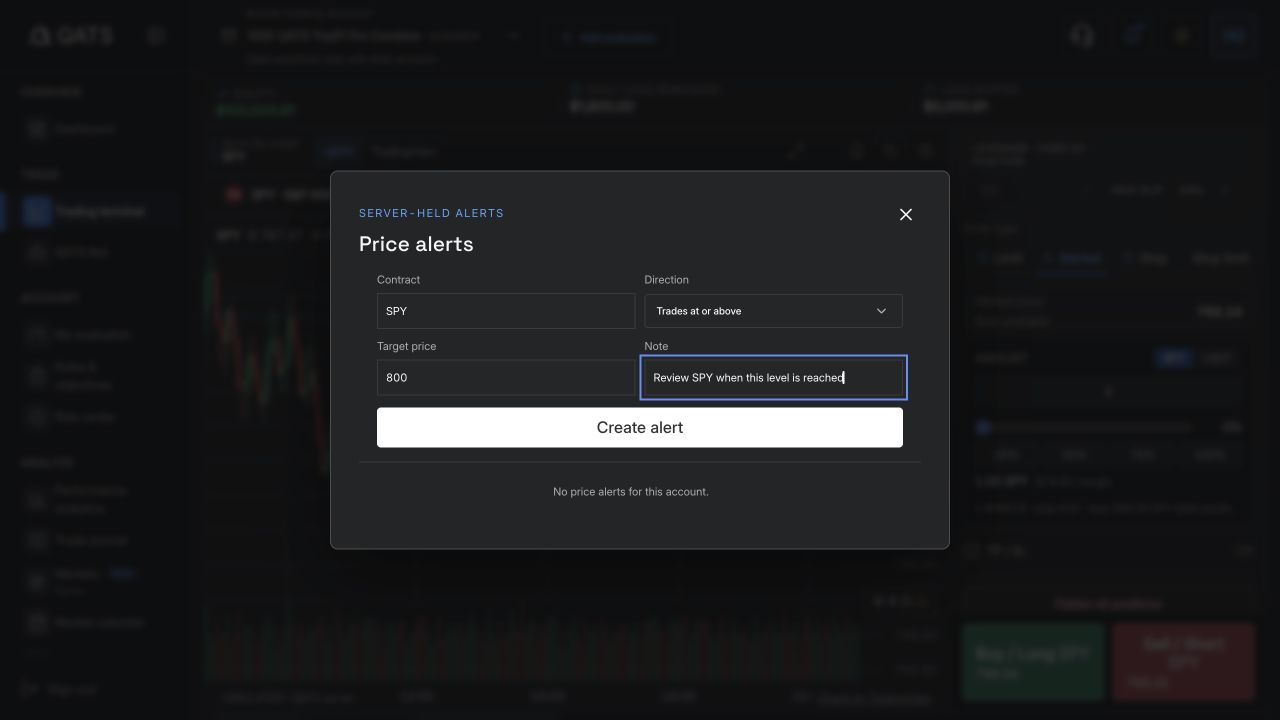
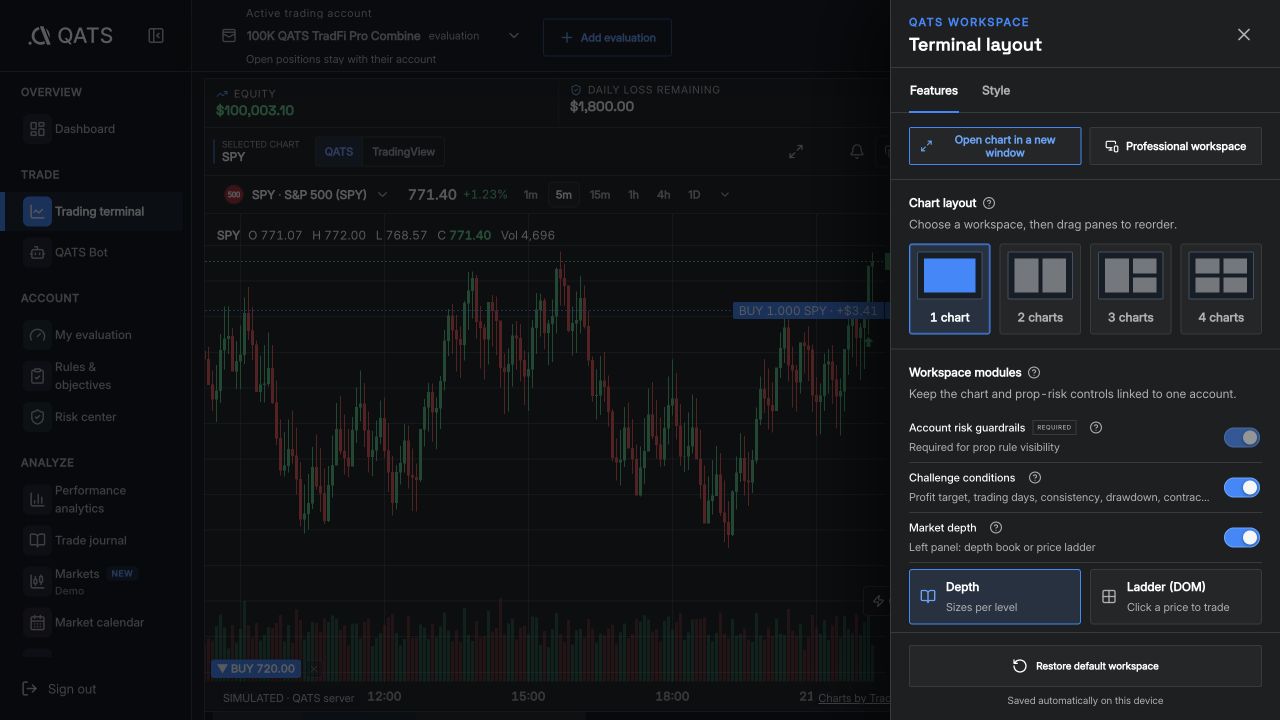
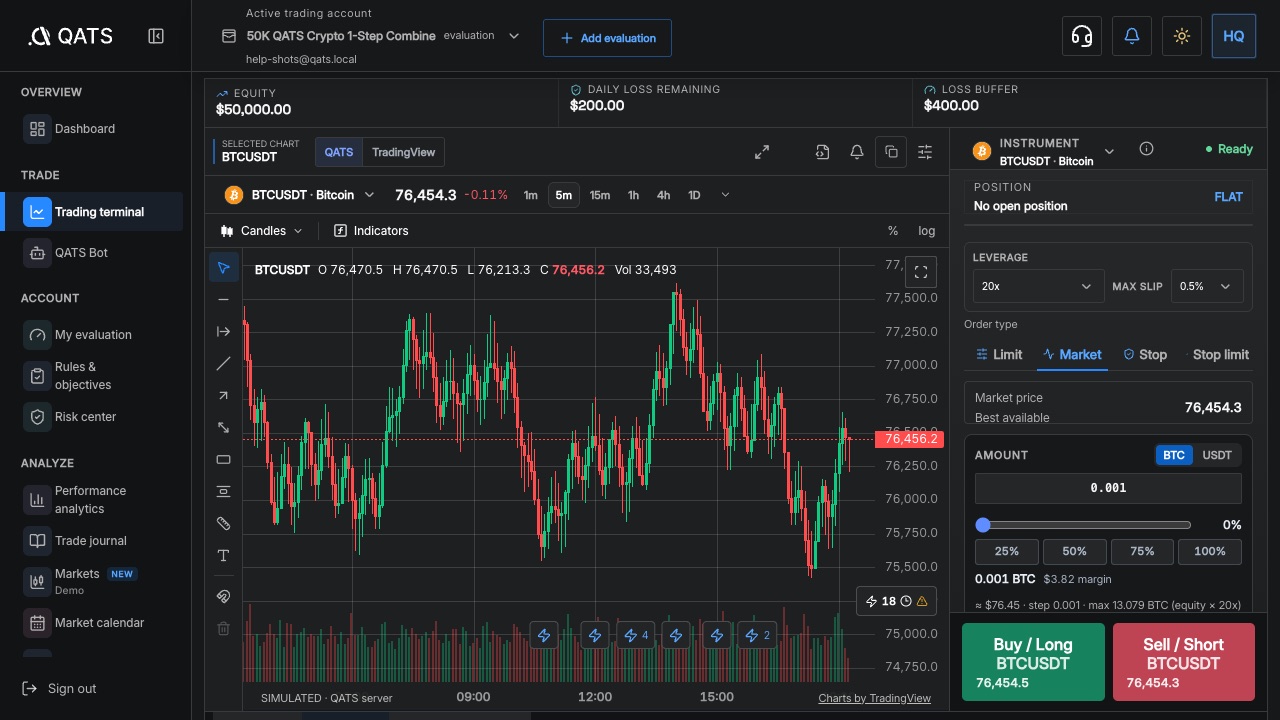
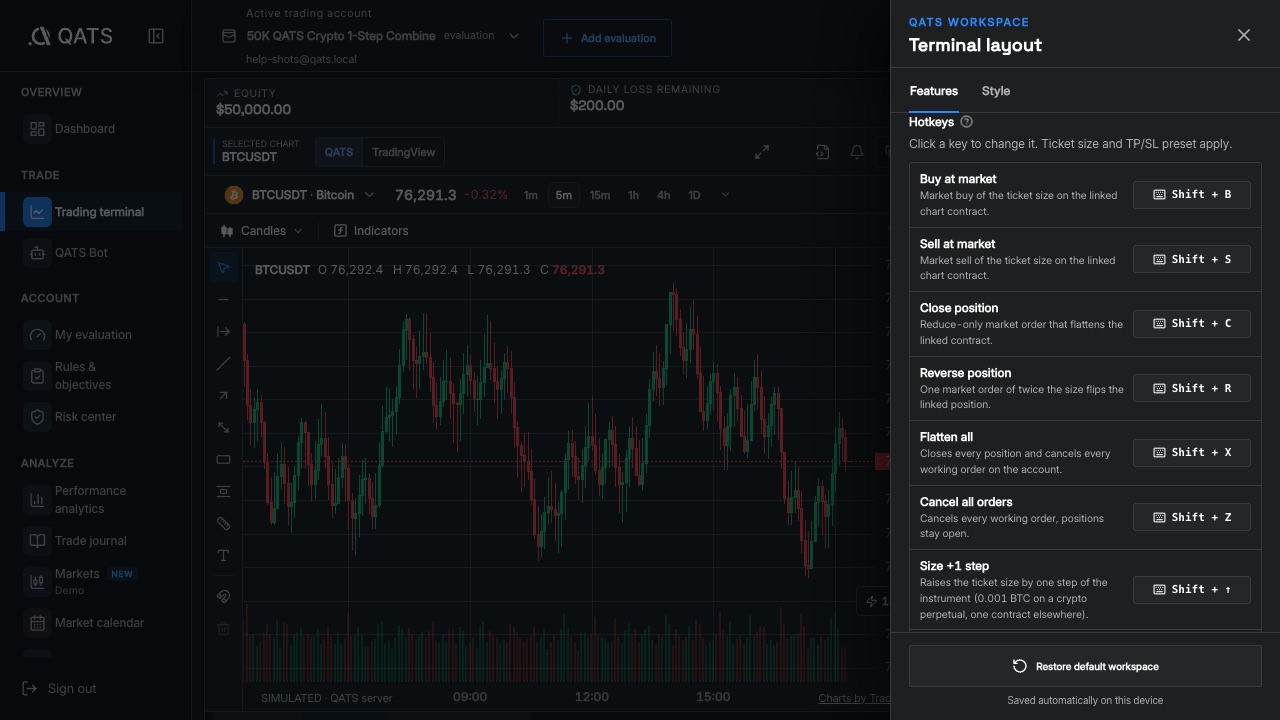
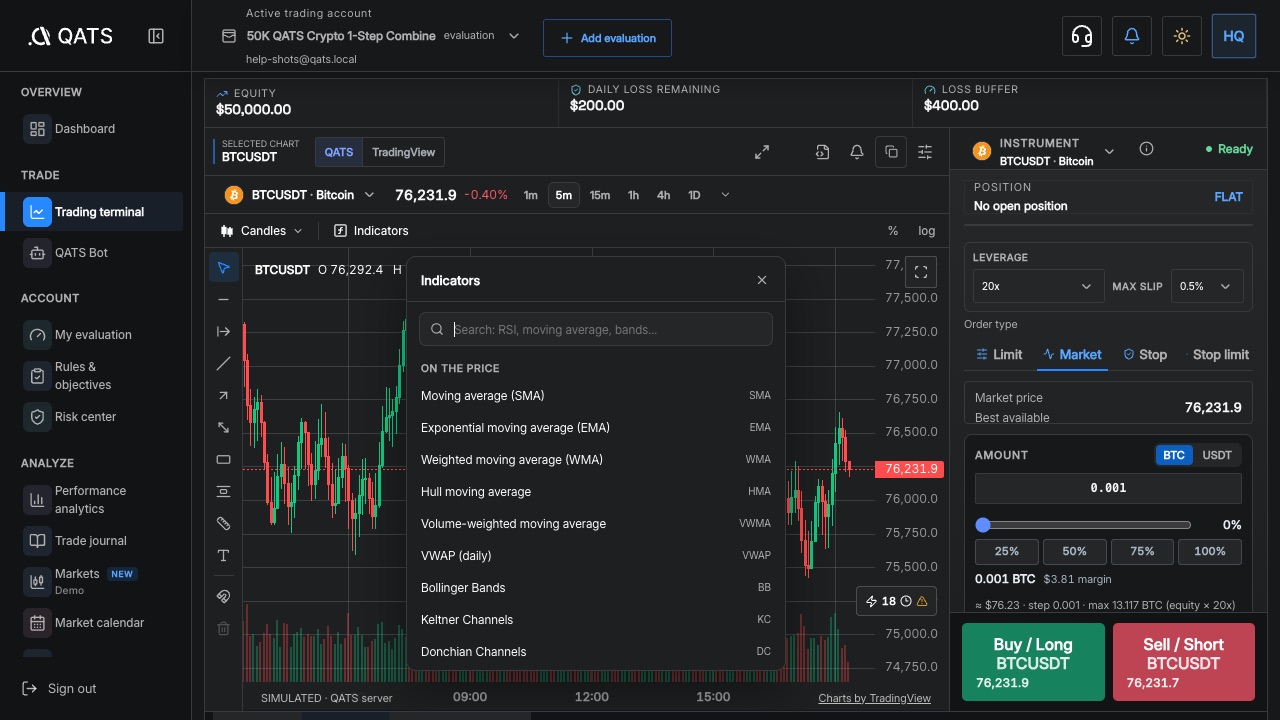
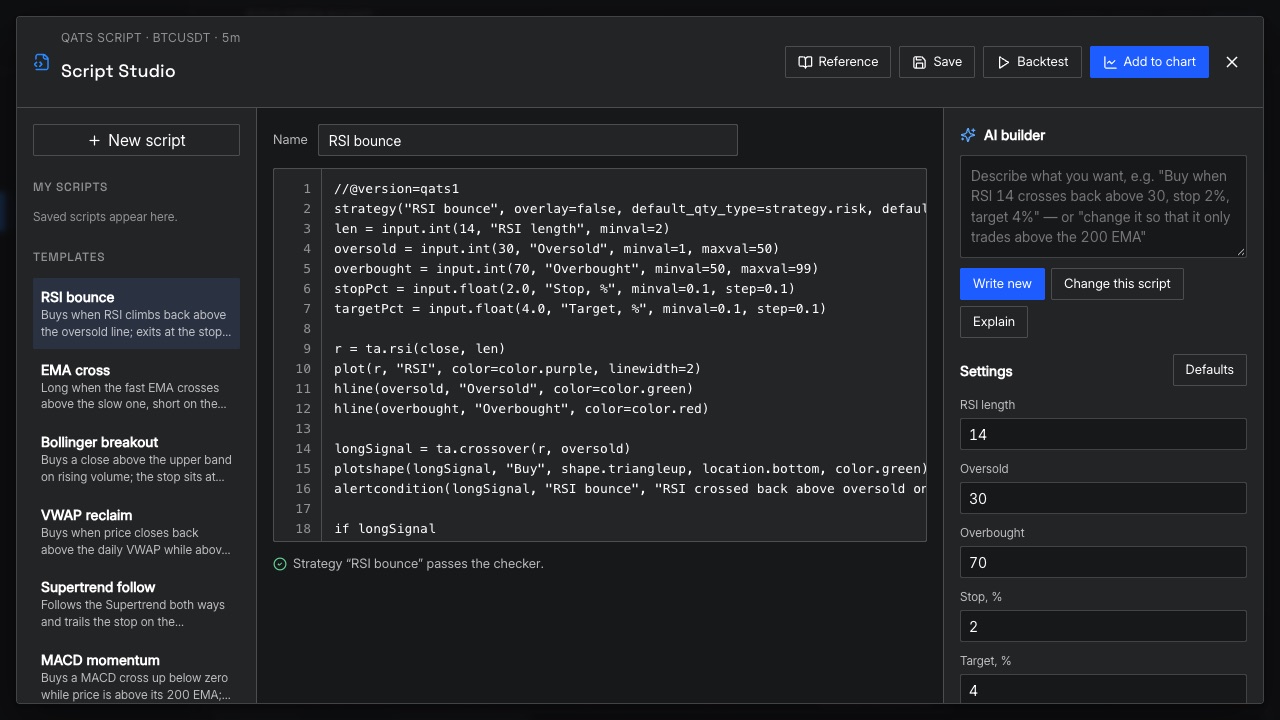
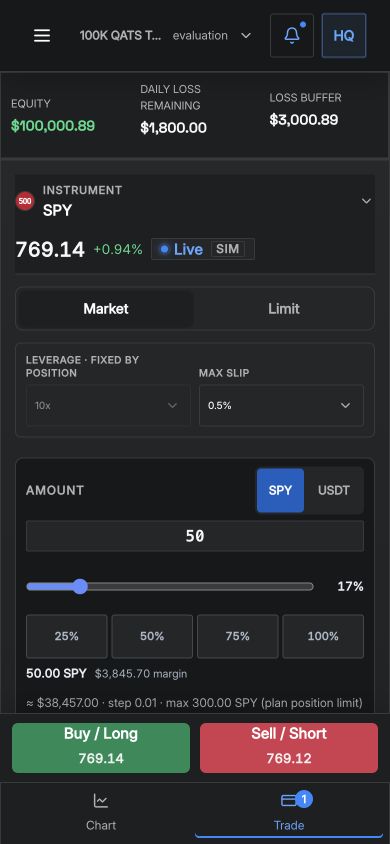
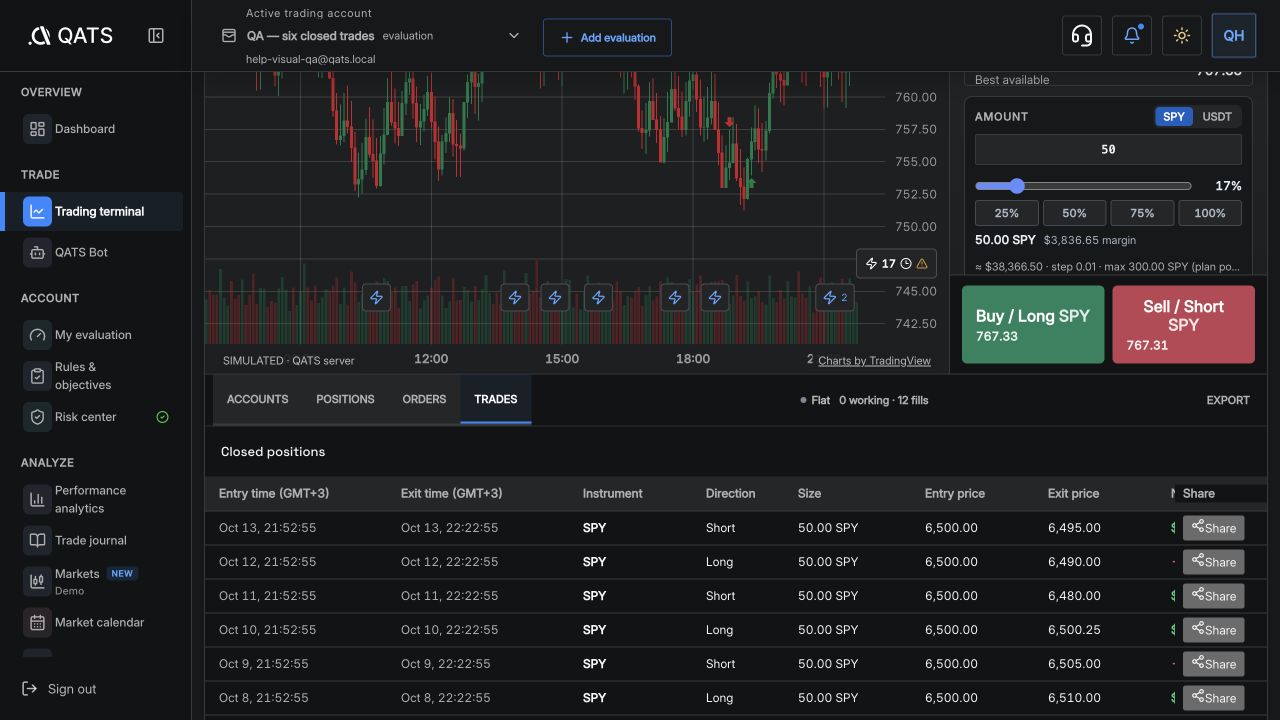
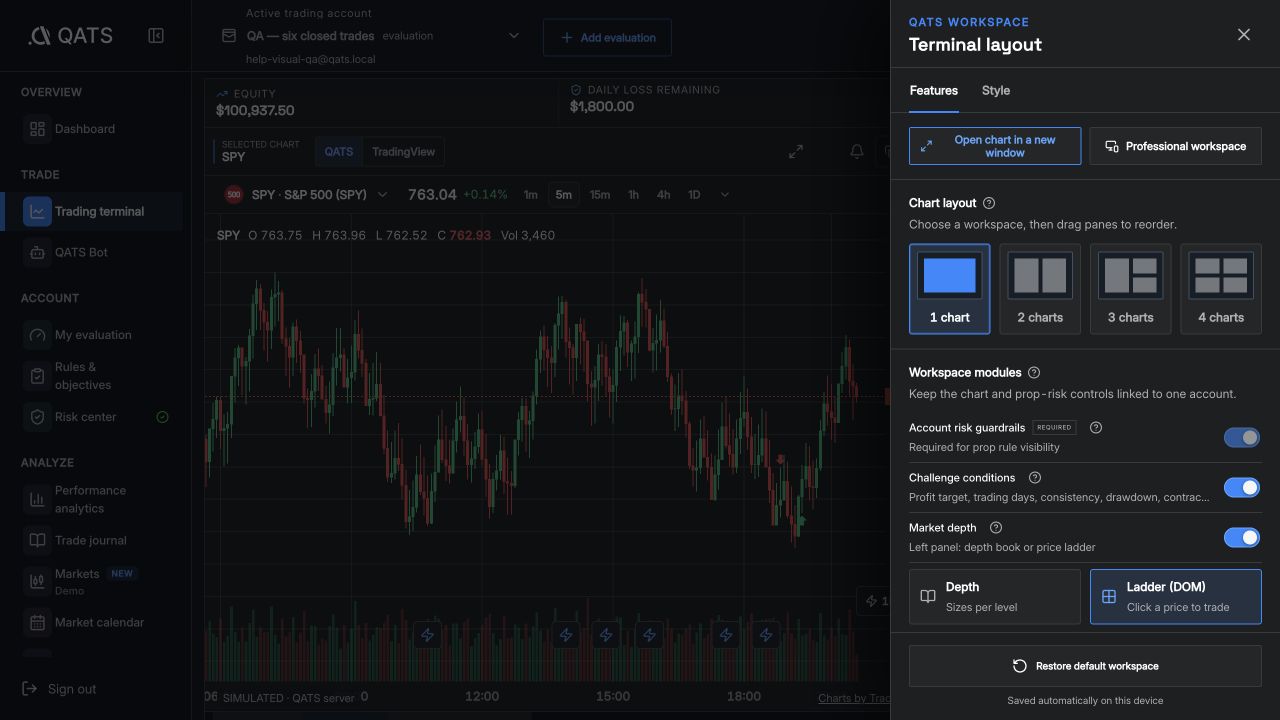
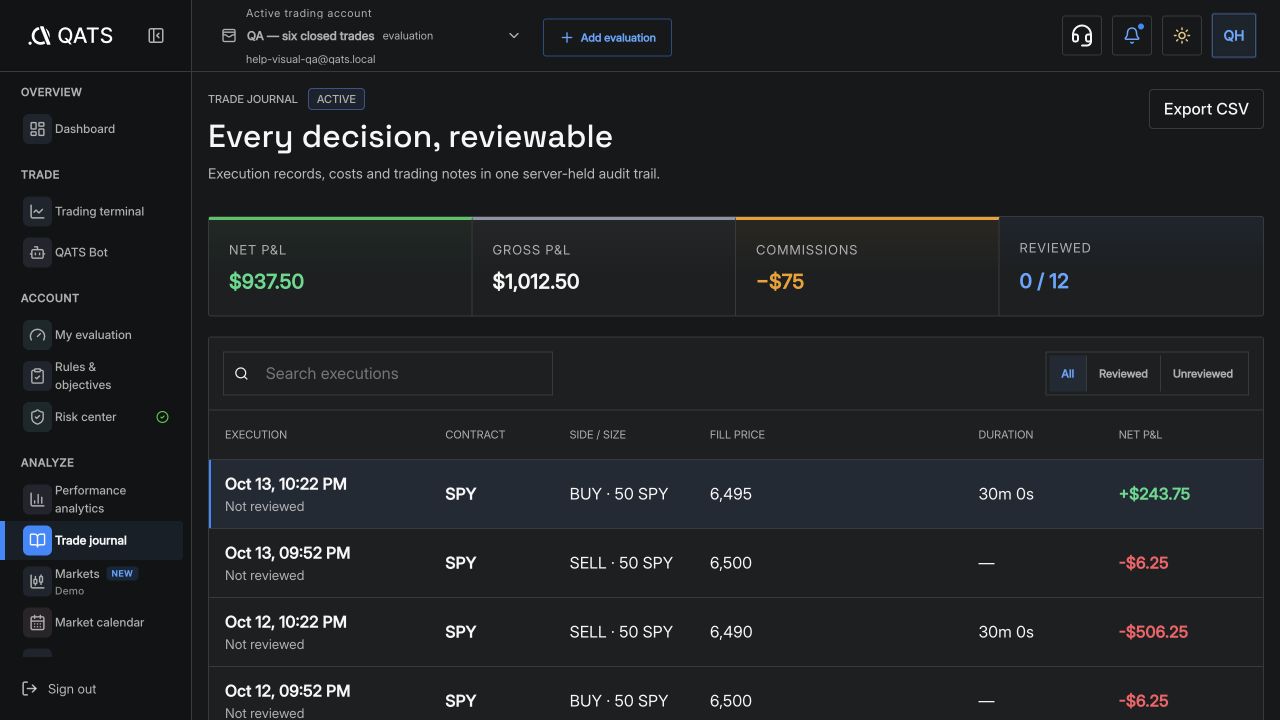
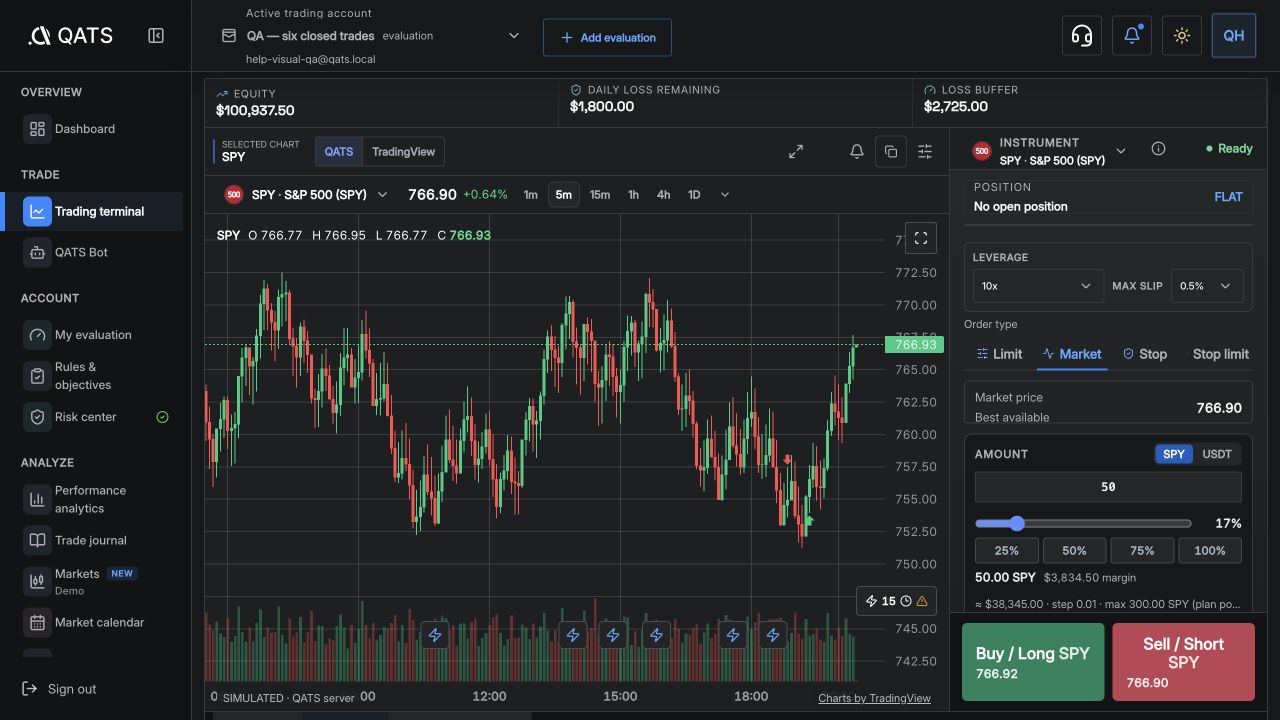
ILLUSTRATED GUIDEChoose an instrument and marketFind the Crypto and TradFi symbols permitted on your account.ILLUSTRATED GUIDEPlace an order in the terminalSet order type and size, then verify the result.ILLUSTRATED GUIDEChoose Market, Limit, Stop, or Stop-limitUnderstand entry prices, triggers, pending orders, and linked OCO legs.ILLUSTRATED GUIDEEdit or cancel a working orderChange the unfilled remainder and distinguish cancellation from closing exposure.ILLUSTRATED GUIDEClose part or all of a positionUse Market close, Limit close, and Reverse deliberately.ILLUSTRATED GUIDEAdd a trailing stopSet a starting stop, choose the distance, and verify the moving protection.ILLUSTRATED GUIDEUnderstand size, margin, and feesRead instrument units and capacity before choosing an order amount.ILLUSTRATED GUIDECreate and manage price alertsUse a server-held notification without sending a trading order.ILLUSTRATED GUIDESet up your terminal workspaceChoose chart panes, ticket placement, panels, and confirmations.ILLUSTRATED GUIDESet leverage and max slippage on crypto ordersChoose a leverage within your plan, see when it is fixed, and cap how far a market entry may fill.ILLUSTRATED GUIDEUse and change terminal hotkeysDefault Shift shortcuts for buy, sell, close, reverse and flatten, and how to reassign them.ILLUSTRATED GUIDEUse the QATS chartChart types, timeframes, indicators, drawings and trading from the chart.ILLUSTRATED GUIDEWrite indicators and strategies with QATS ScriptUse Script Studio and its AI builder to draw indicators and backtest strategies against prop rules.ILLUSTRATED GUIDETrade from the mobile terminalUse Chart and Trade upright, or turn the phone sideways for chart, ticket, book and positions side by side.ILLUSTRATED GUIDETell positions, orders, and fills apartA submitted order does not necessarily mean an open position.ILLUSTRATED GUIDESet Stop Loss and Take ProfitVerify position protection and changes to either level.ILLUSTRATED GUIDERead the order book and Price LadderPrice, visible size, tick step, and the click-to-trade switch.ILLUSTRATED GUIDEFind a trade and its feesReview fills, P&L, and account history exports.ILLUSTRATED GUIDEUnderstand order refusals and error messagesWhat price-check, leverage, key and bot refusals such as PRICE_REFERENCE_MISMATCH mean, and what to do.

Risk & rules

Evaluation rules, daily loss, maximum drawdown, sessions, and restrictions.
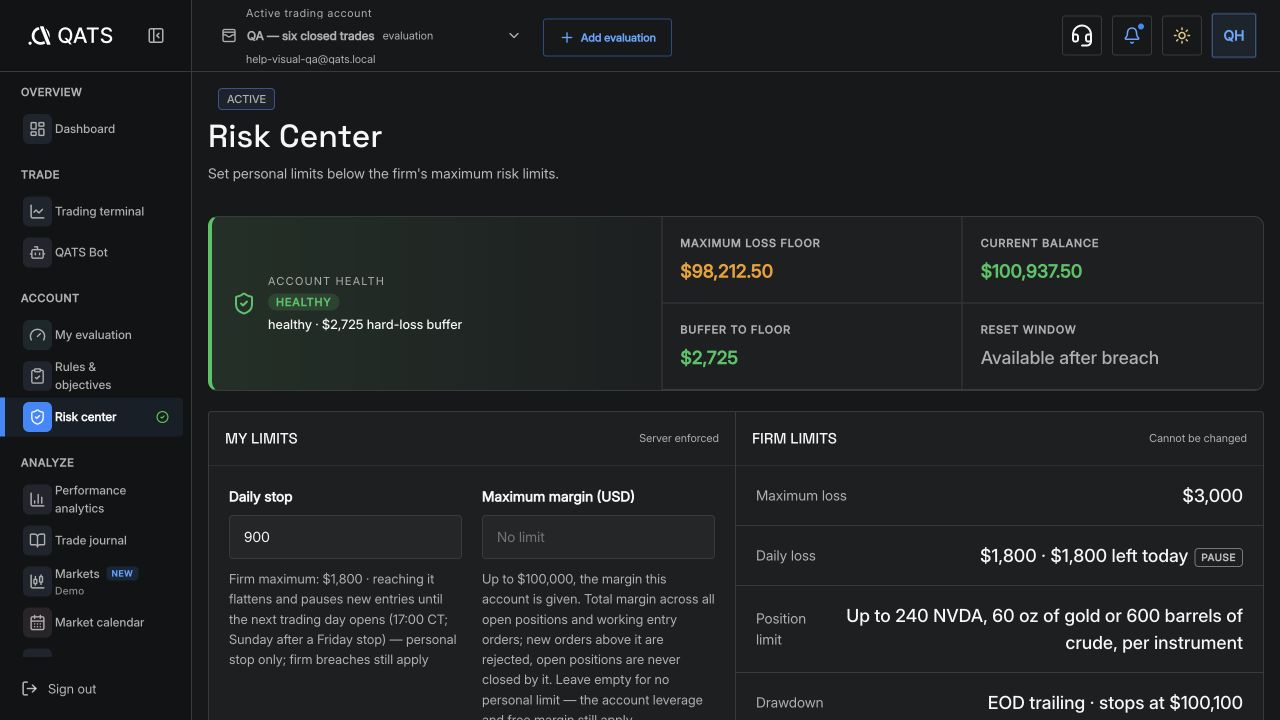
5
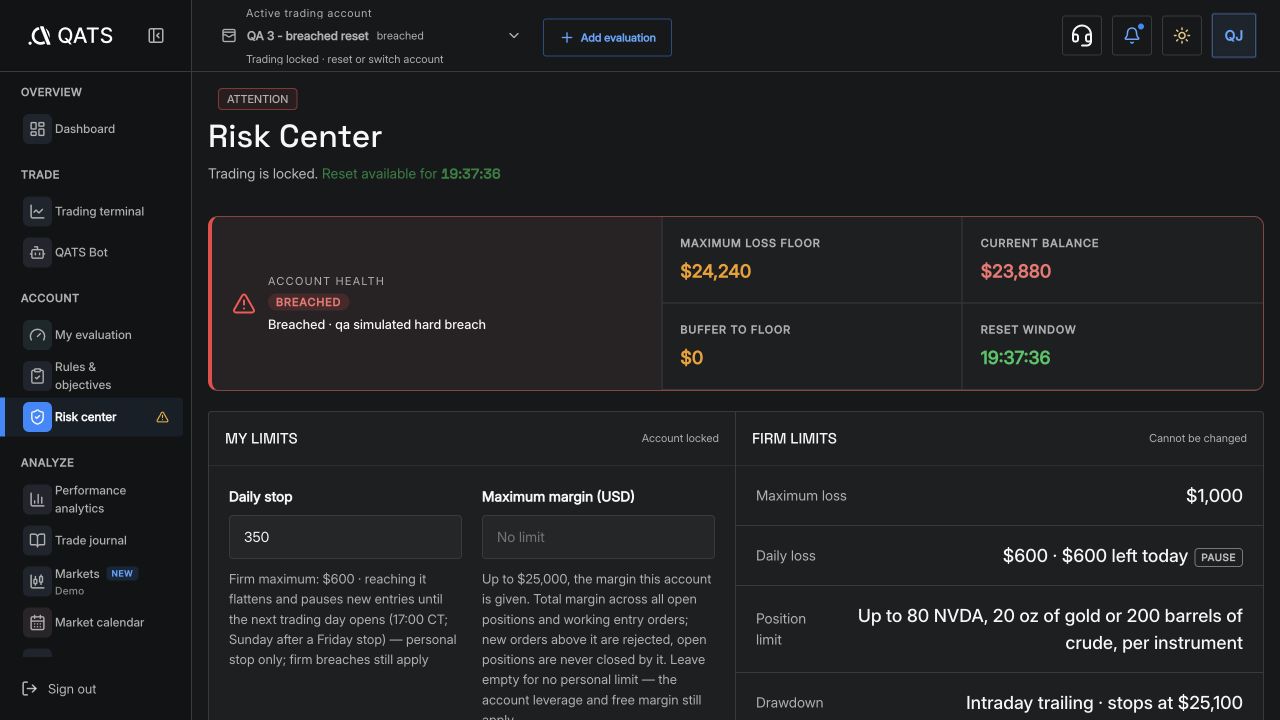
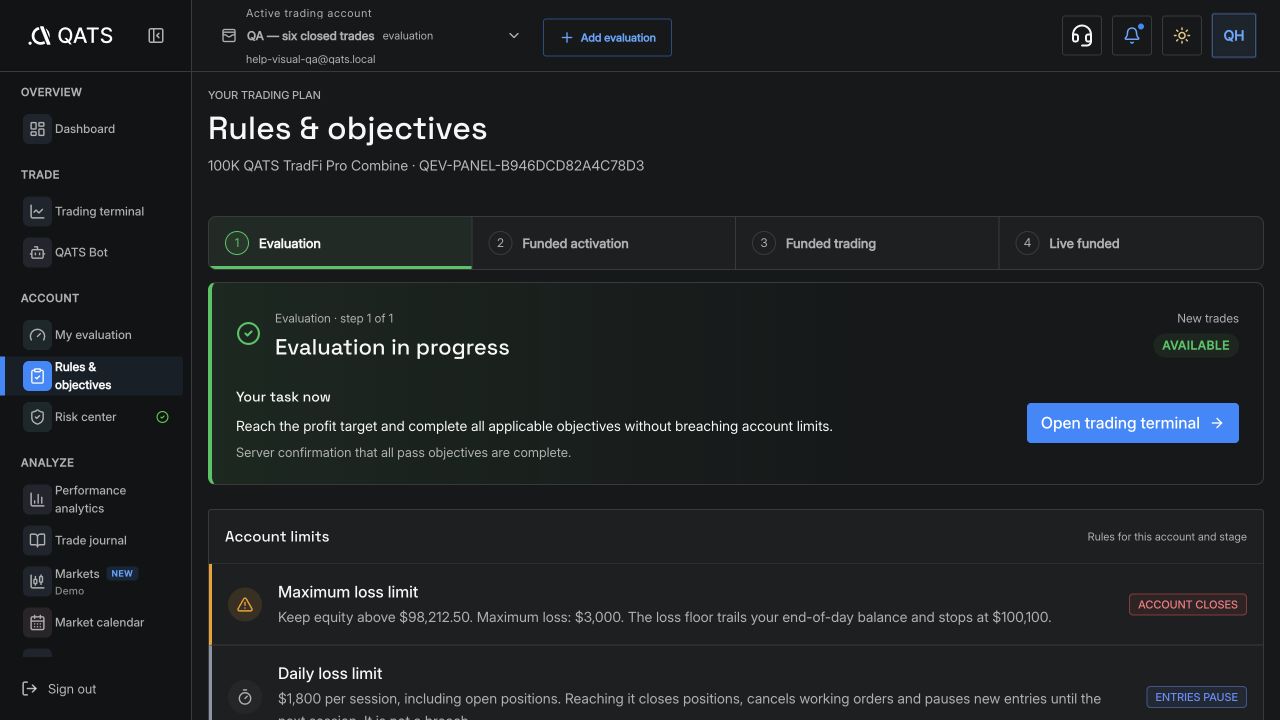
ILLUSTRATED GUIDEUse Risk centerCheck current limits, restrictions, and entry availability.ILLUSTRATED GUIDEEvaluation rules: target, loss limits, days and consistencyHow QATS checks the profit target, daily and maximum loss, trading days and the best-day rule.ILLUSTRATED GUIDEUnderstand the daily loss limitWhy Crypto and TradFi respond differently when it is reached.ILLUSTRATED GUIDEUnderstand maximum drawdownThe account floor, equity, and what happens after a breach.ILLUSTRATED GUIDETrading sessions, halts, and newsKnow when entries pause and where to check the calendar.

Funded & payouts

Activation, identity checks, payouts, and the path to Live Funded.
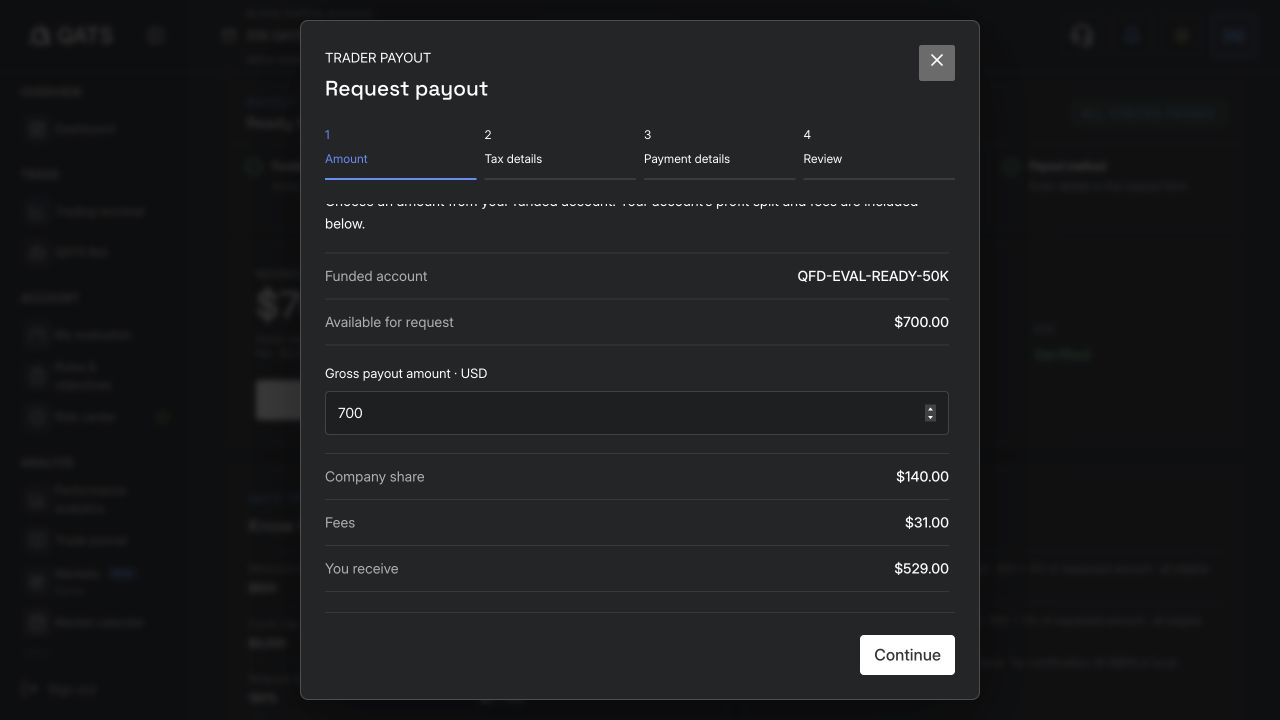
7
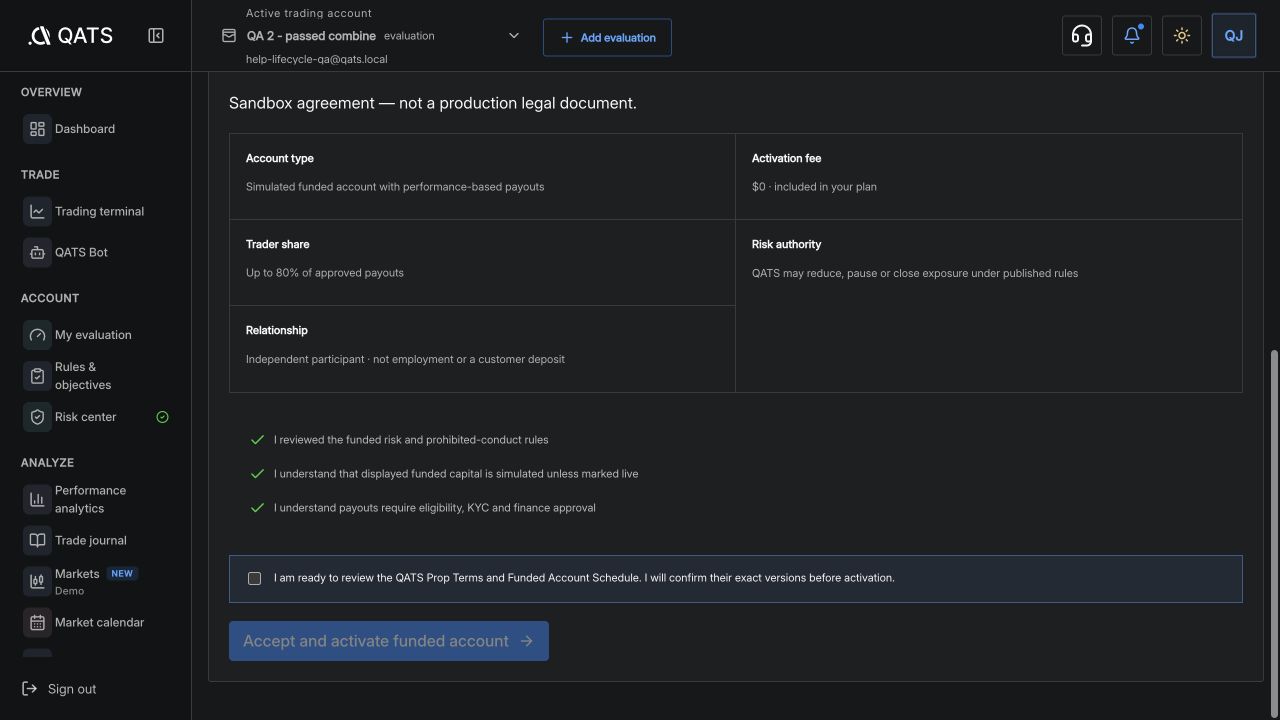
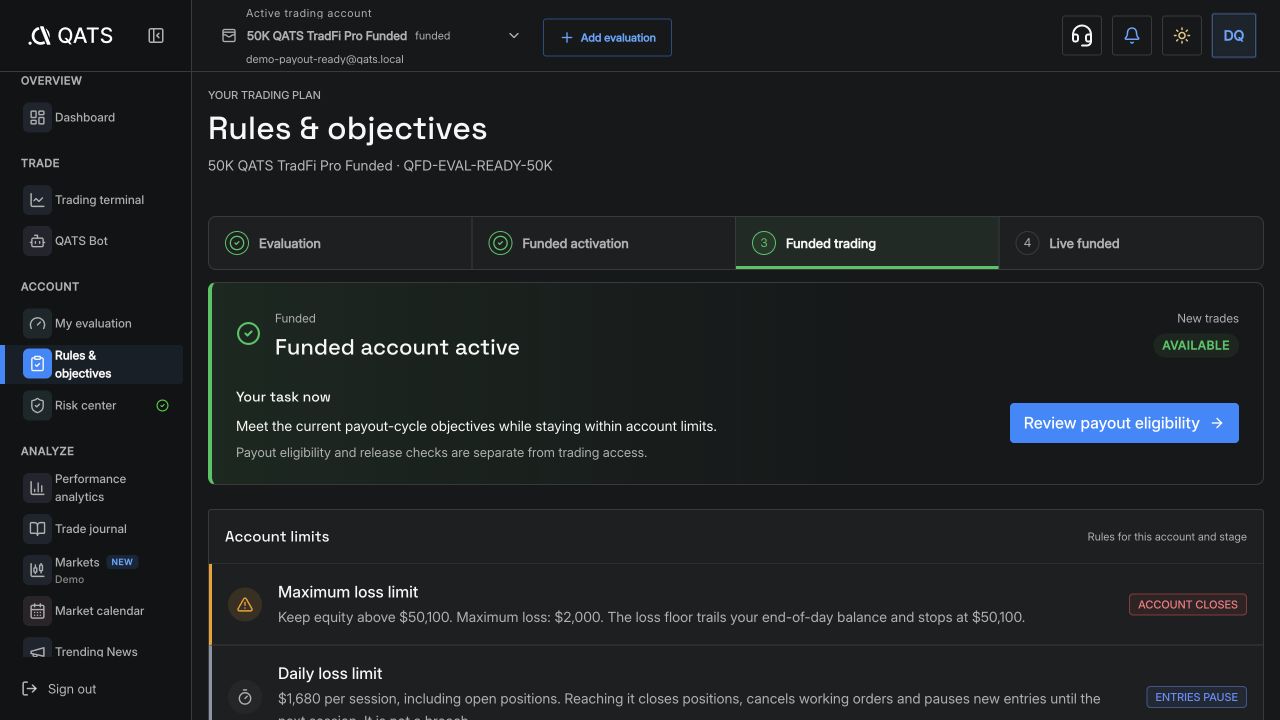
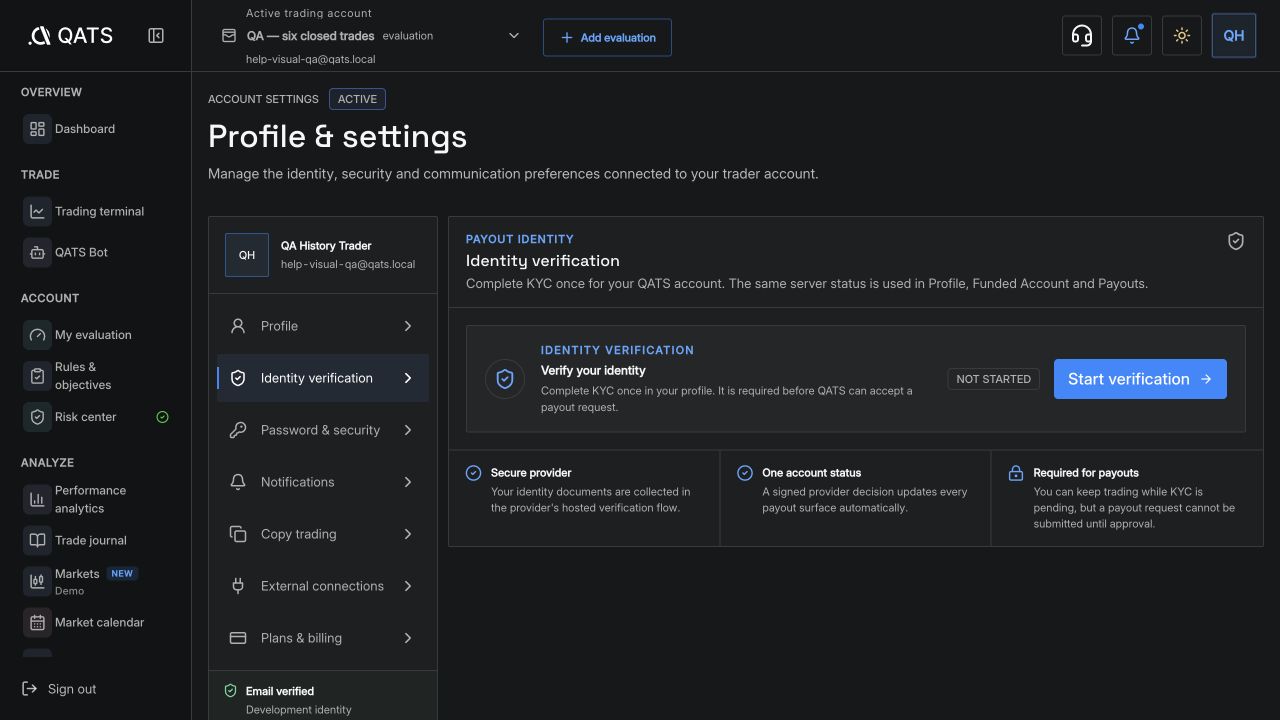
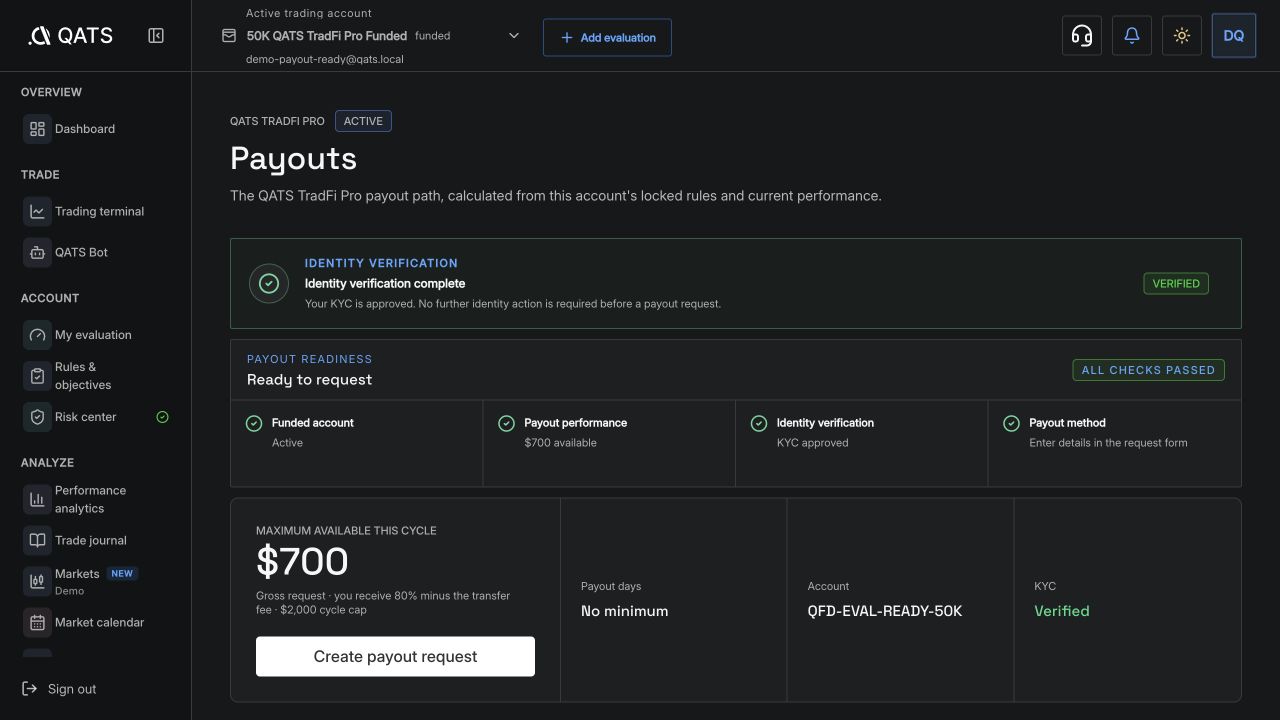
ILLUSTRATED GUIDEUnderstand 50% release and your 80% shareSee what leaves the account, what you receive, and what remains for later.ILLUSTRATED GUIDEPass Evaluation and activate FundedWhat follows a confirmed pass and when an activation fee applies.ILLUSTRATED GUIDETrade Funded and build your payout cycleYour new account, Funded risk limits, net profit, payout cycles, and recovery.ILLUSTRATED GUIDEComplete identity verificationWhen KYC is needed and where to follow its decision.ILLUSTRATED GUIDECheck payout eligibilityQualifying days, profit, buffer, request cap, and trader share.ILLUSTRATED GUIDERequest a payoutAmount, tax details, bank or USDT destination, final review, and request status.ILLUSTRATED GUIDEMove to Live Funded and trade real capitalSeparate approval, managed Binance or Bybit setup, real fills, and Live risk.

API & automation

QATS Trade for Chrome, TradingView, Bybit Demo, API keys, bots, and copy trading.
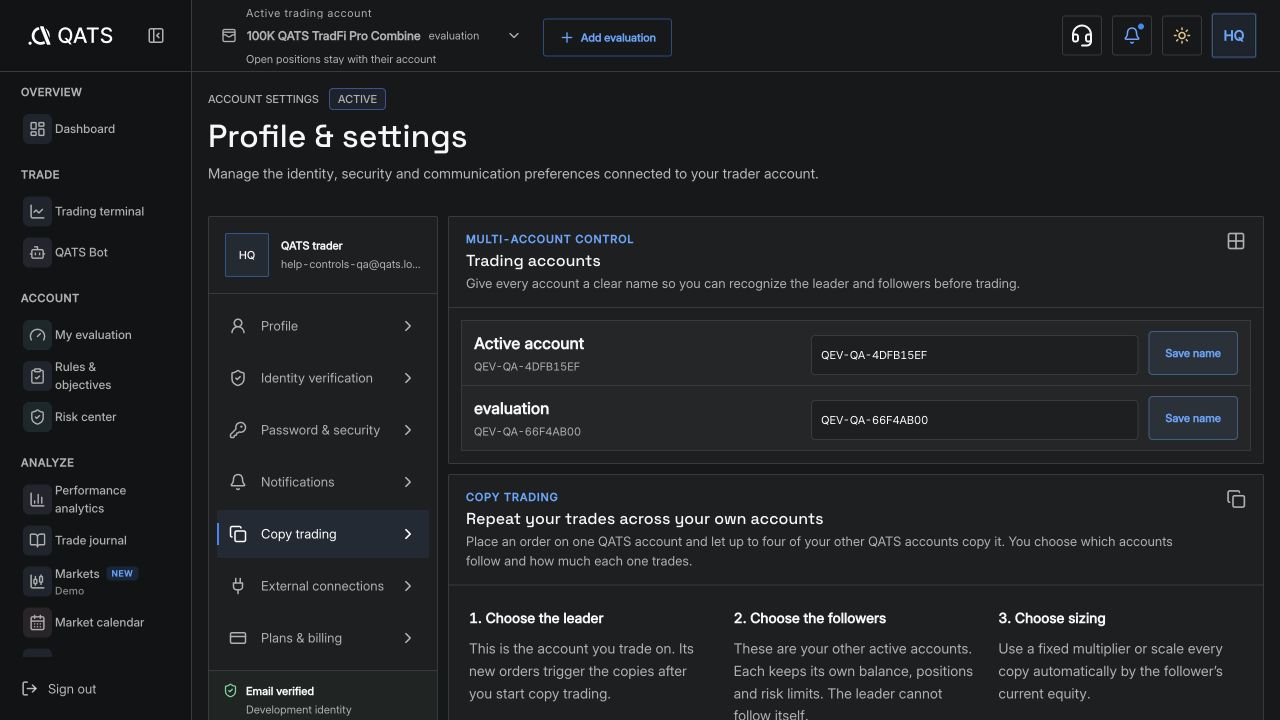
11
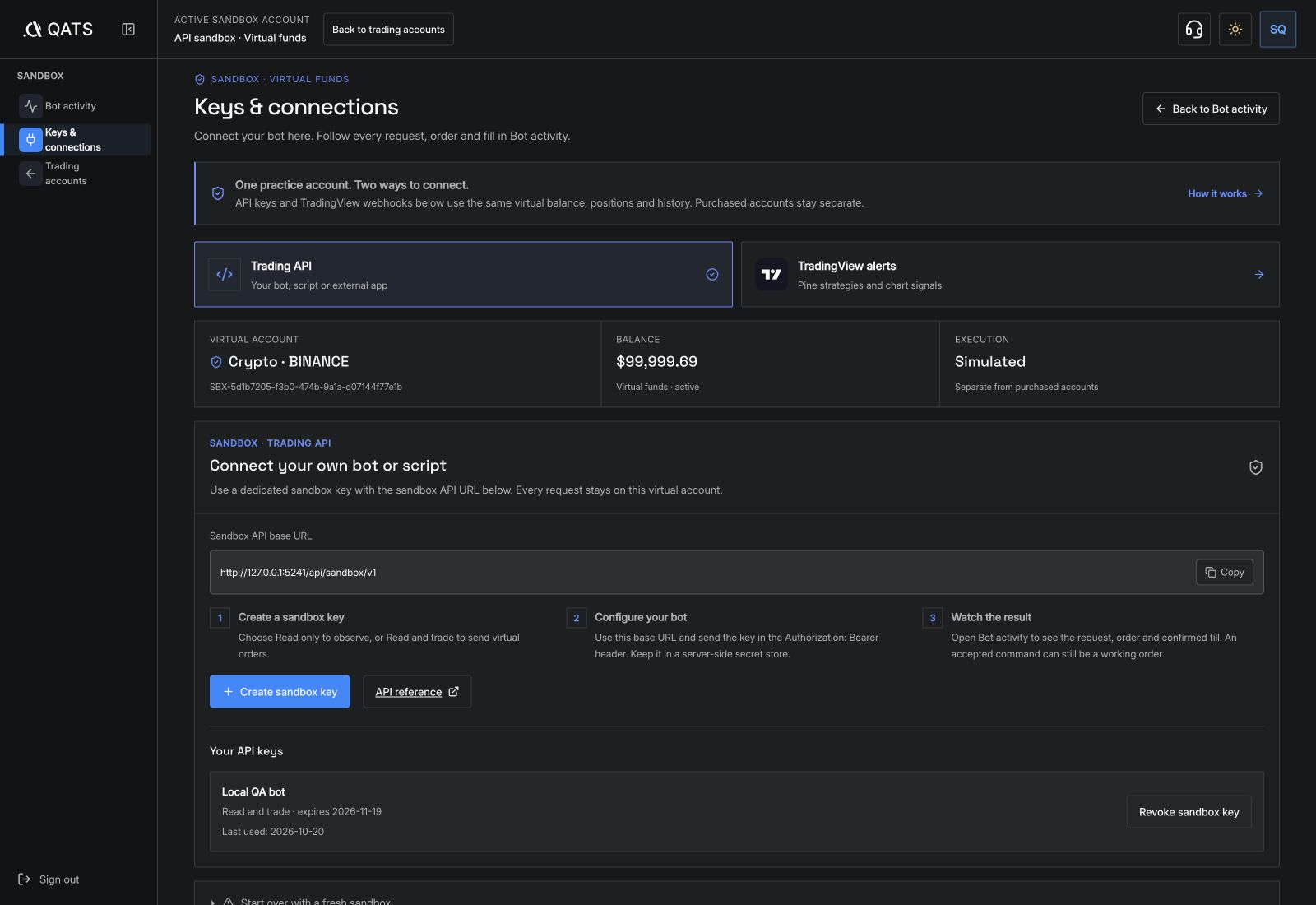
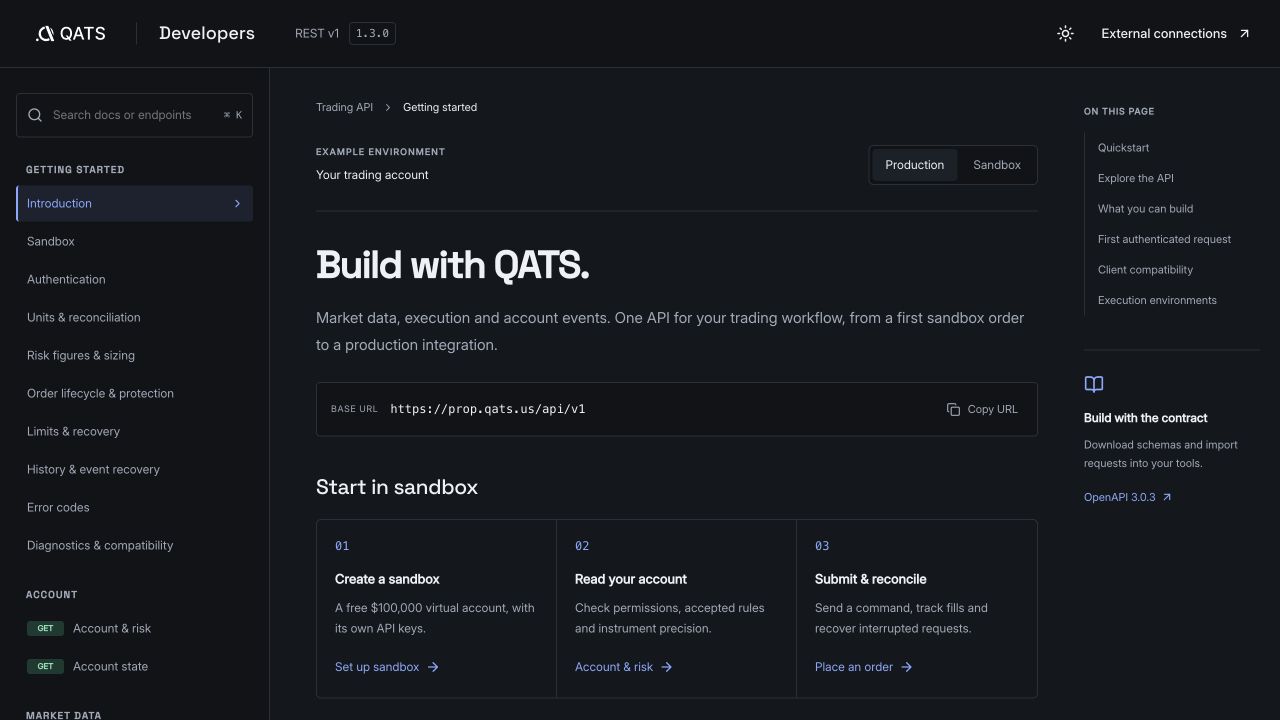
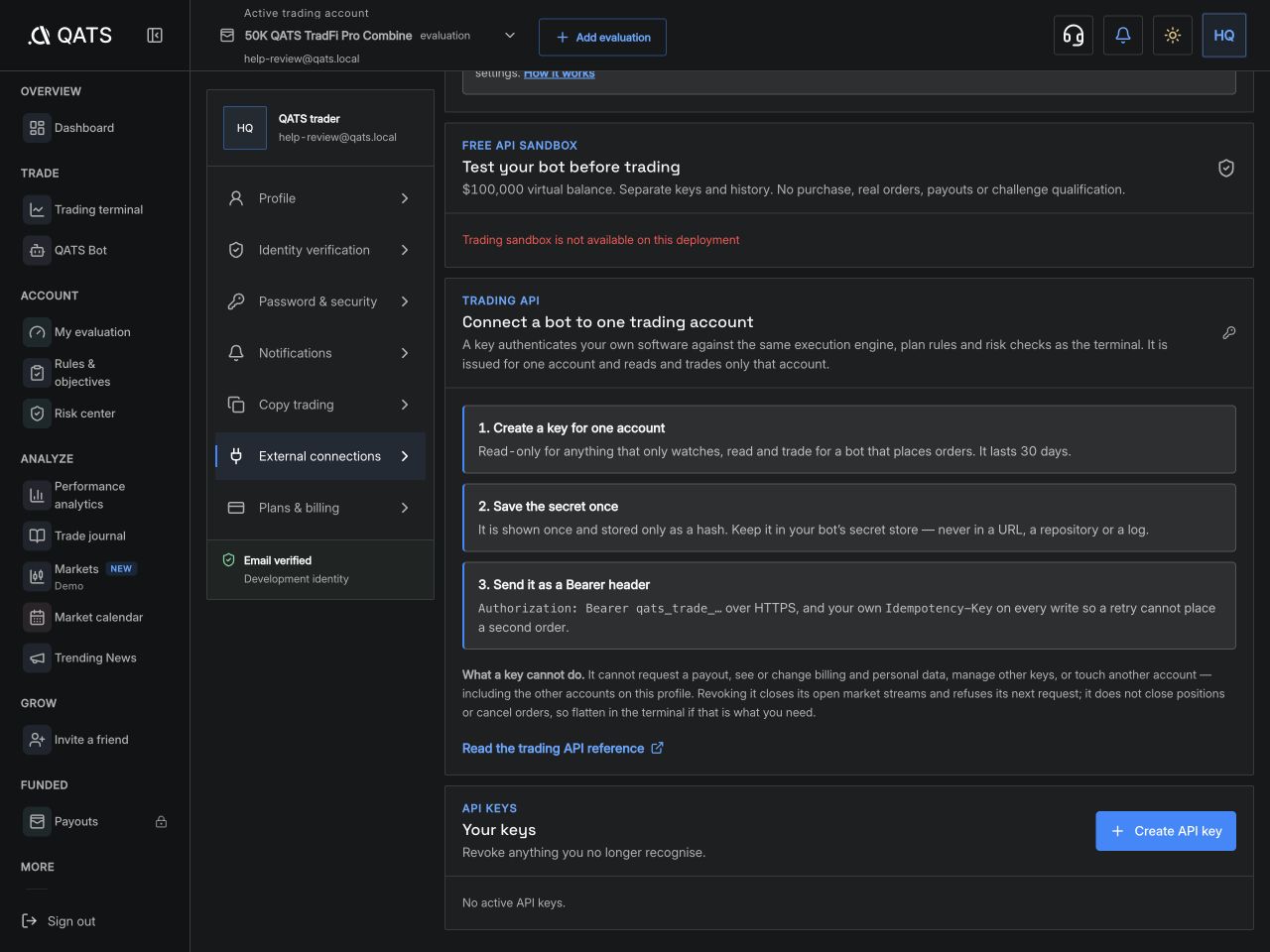
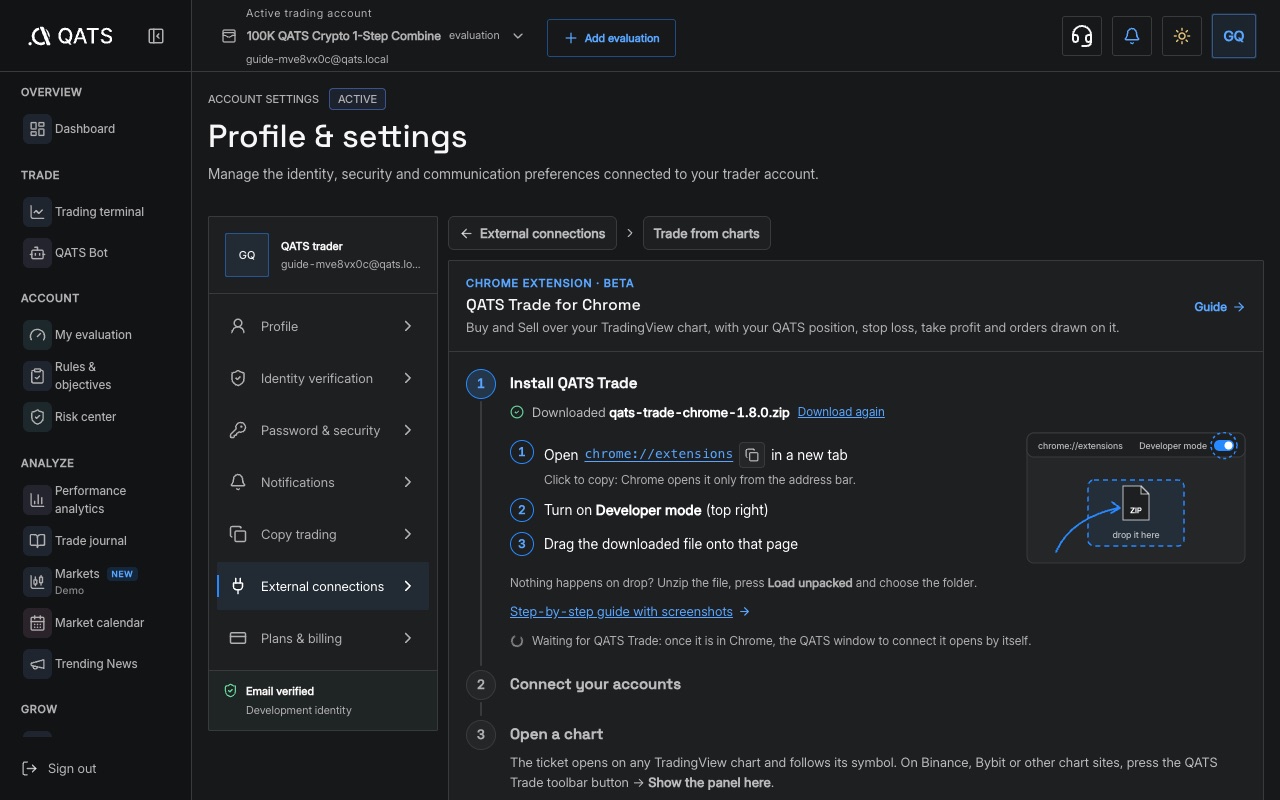
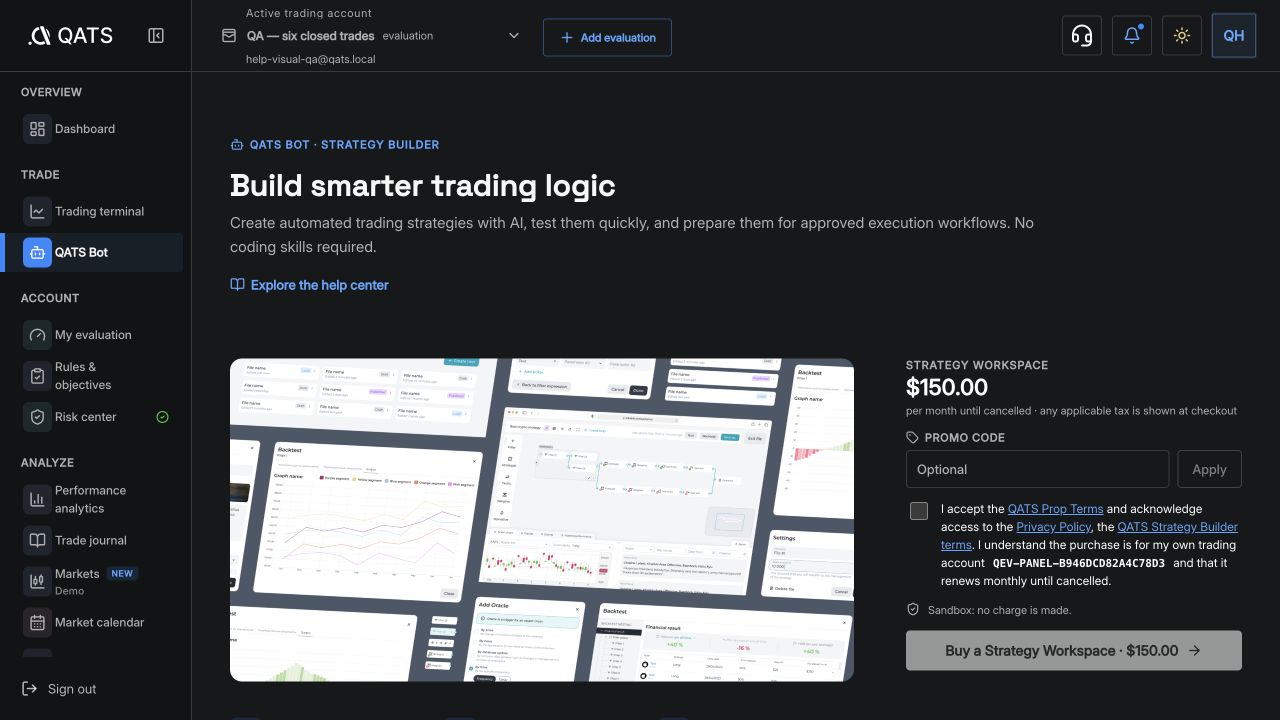
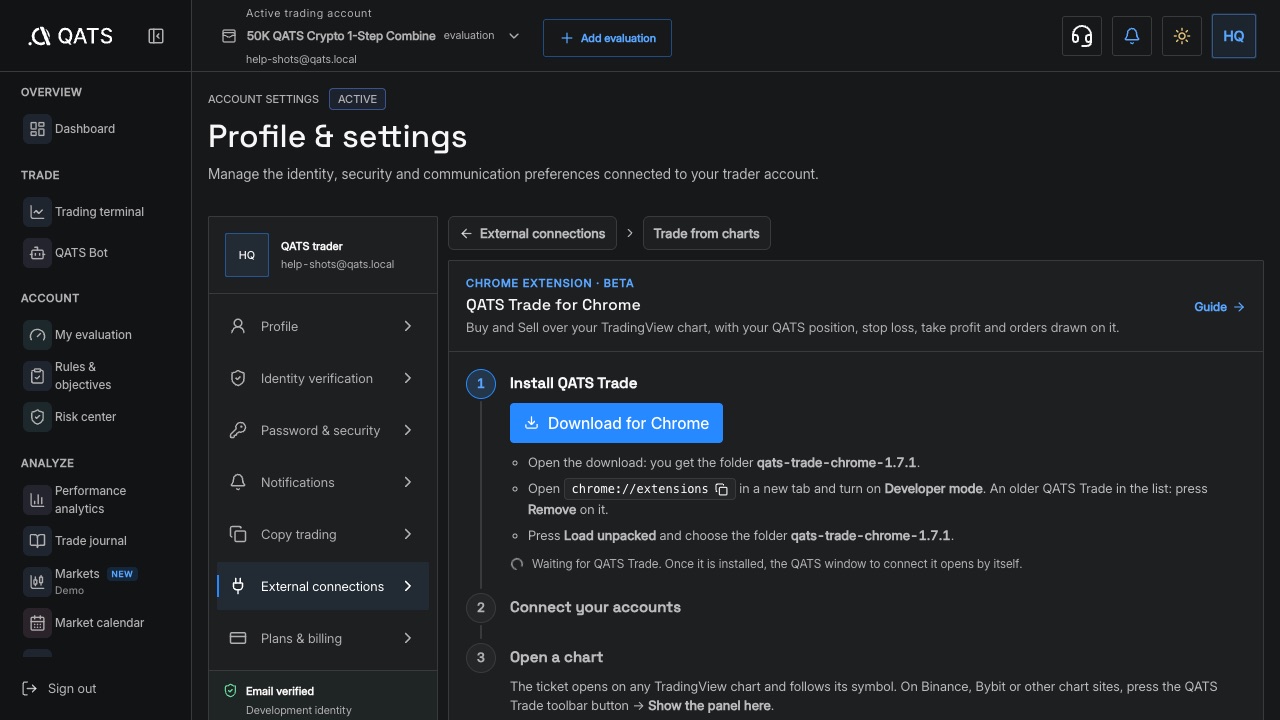
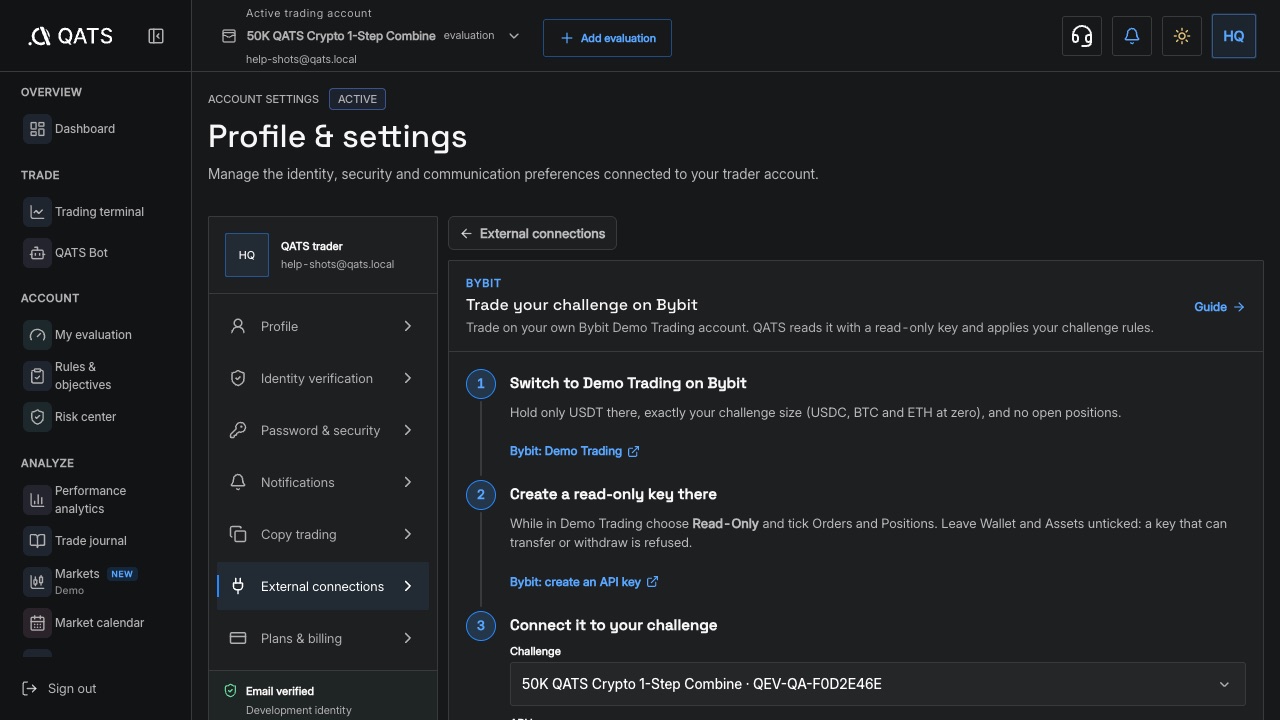
ILLUSTRATED GUIDECopy trades across your QATS accountsChoose a leader, followers, and sizing while keeping each account’s rules.ILLUSTRATED GUIDECreate a free API sandboxTest an integration on a separate account with virtual funds.ILLUSTRATED GUIDECreate and protect an API keyPermissions, expiry, and safe key replacement.ILLUSTRATED GUIDESend your first API orderSelect an environment, check instrument limits, and verify execution.ILLUSTRATED GUIDERecover after an API timeoutResolve an uncertain command without accidentally duplicating an order.ILLUSTRATED GUIDEChoose an external connectionFind the right route: QATS Trade for Chrome, TradingView alerts, your bot, an API sandbox or Bybit Demo.ILLUSTRATED GUIDEInstall QATS Trade for ChromeDownload it, drag the file onto chrome://extensions, approve once, trade on TradingView.ILLUSTRATED GUIDEConnect TradingViewOne personal webhook URL: alerts, Pine strategies and the QATS Ticket indicator, with the alert log and fixes for refusals.ILLUSTRATED GUIDERun a strategy with QATS BotOpen a Strategy Builder workspace, bind a strategy to an account, and start or stop the bot.ILLUSTRATED GUIDETrade from the chart with QATS Trade for ChromeInstall the extension, connect with QATS, and use the ticket, chart lines, price check and layouts.ILLUSTRATED GUIDETrade your challenge on Bybit DemoMove an untouched crypto challenge to your own Bybit Demo Trading account with a read-only key.

Affiliates

Applications, referrals, commissions, and partner payouts.
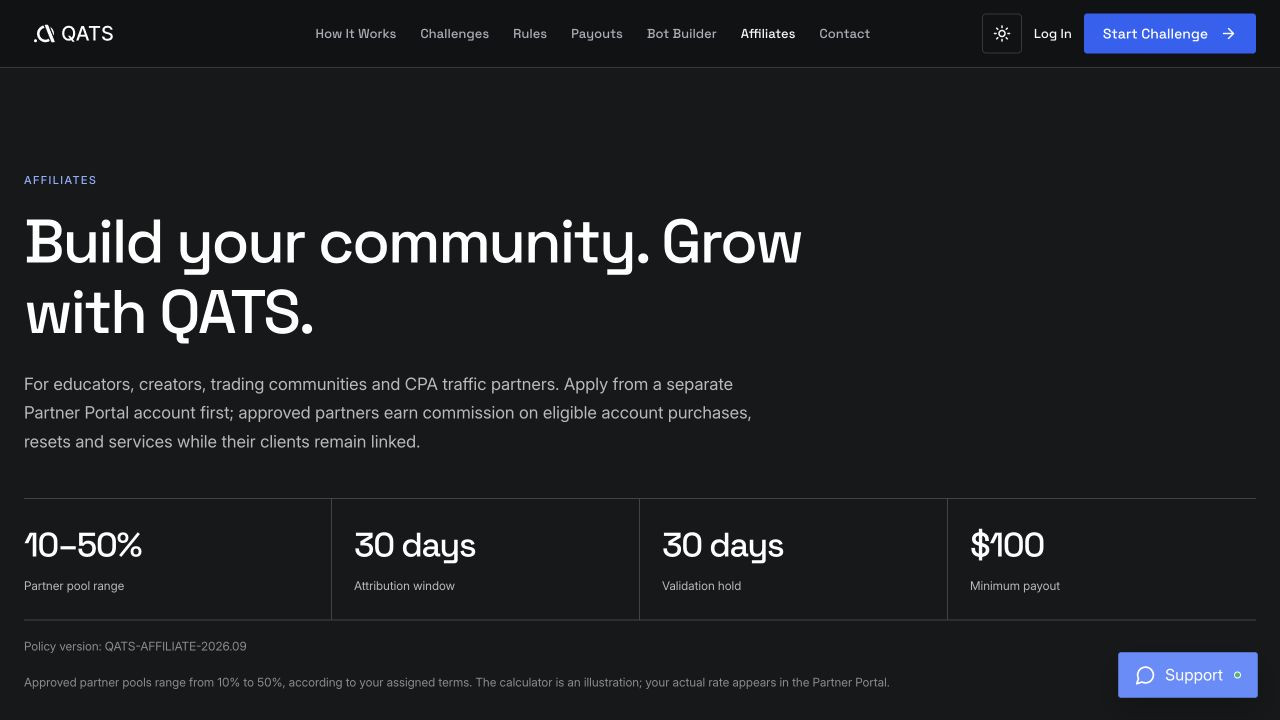
3
ILLUSTRATED GUIDEBecome a QATS affiliateApply, await approval, and access the partner portal.ILLUSTRATED GUIDEReview referrals and commissionsFind attributed purchases, rates, and earnings.ILLUSTRATED GUIDERequest an affiliate payoutCheck available commission, verification, and transfer status.

Account & support

Sign-in, security, connected apps, support, legal documents, and data controls.
6
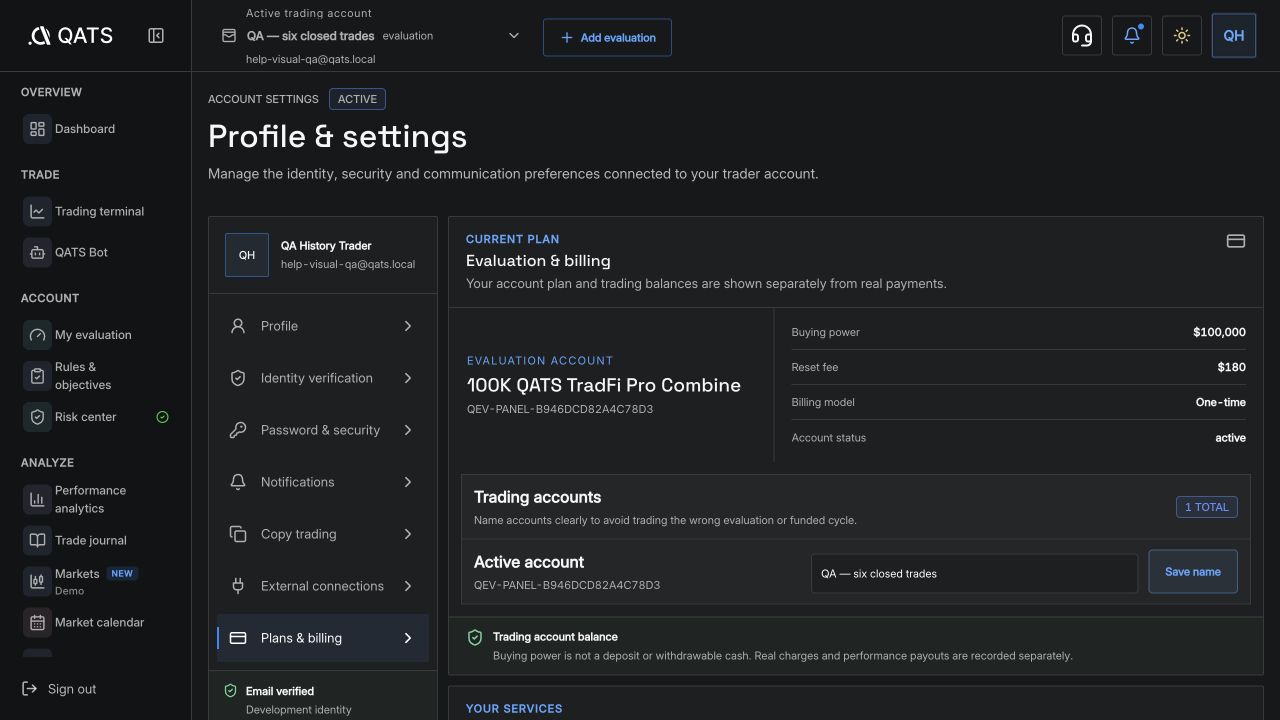
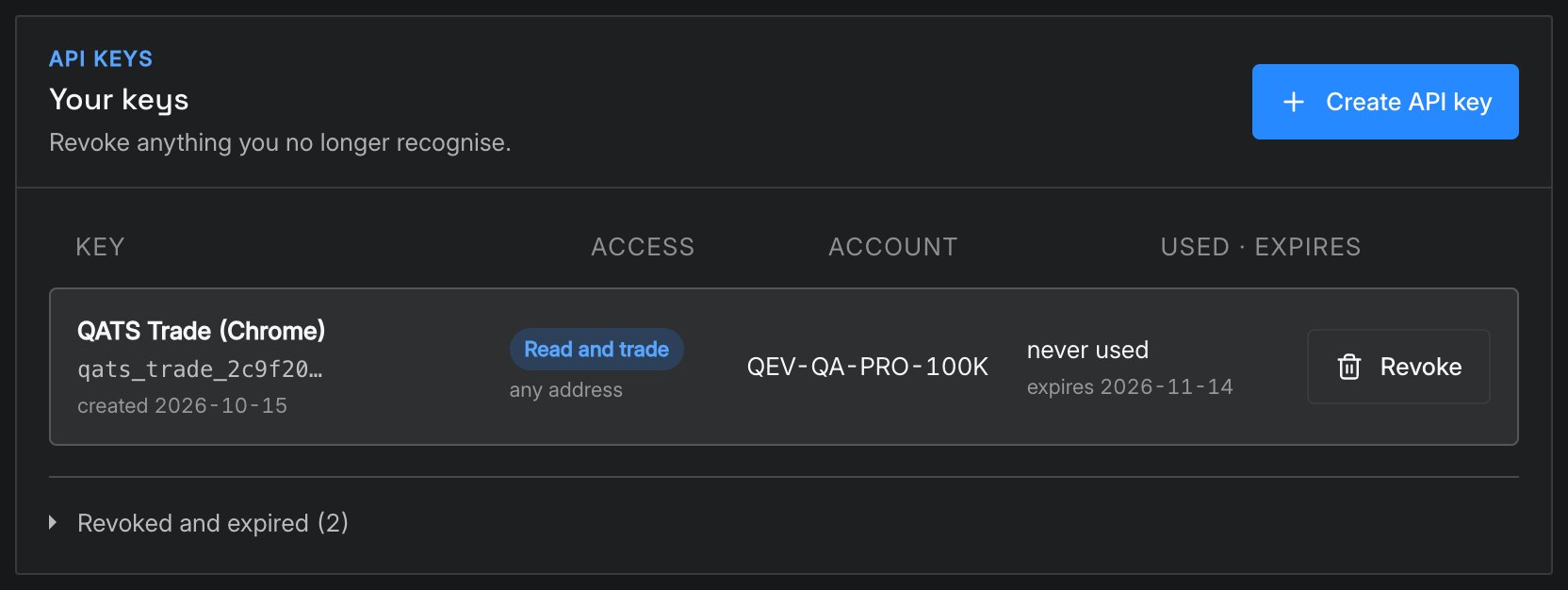
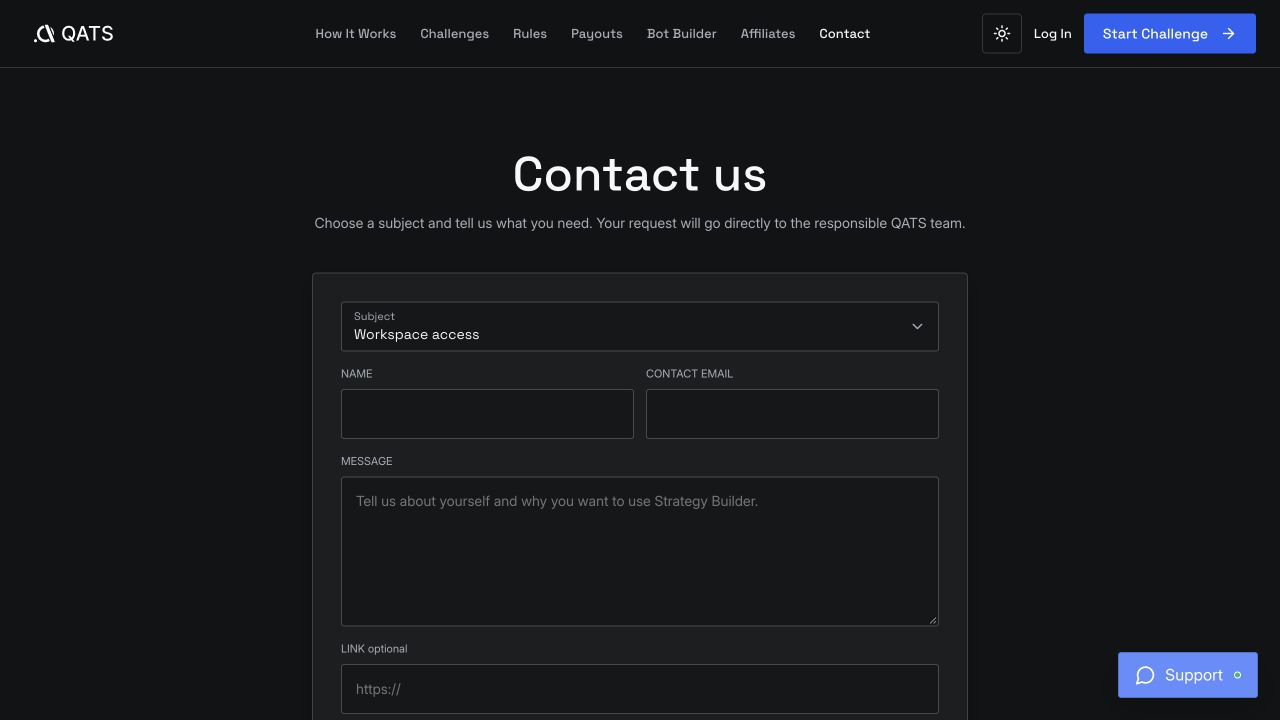
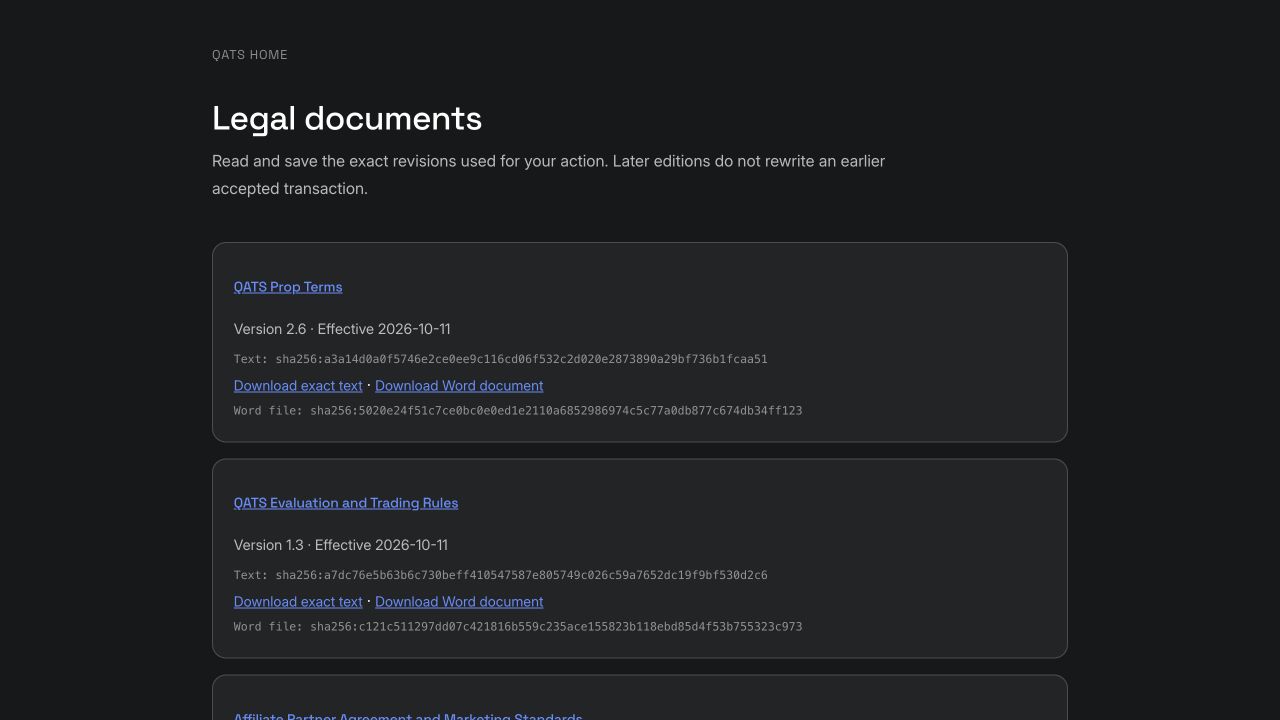
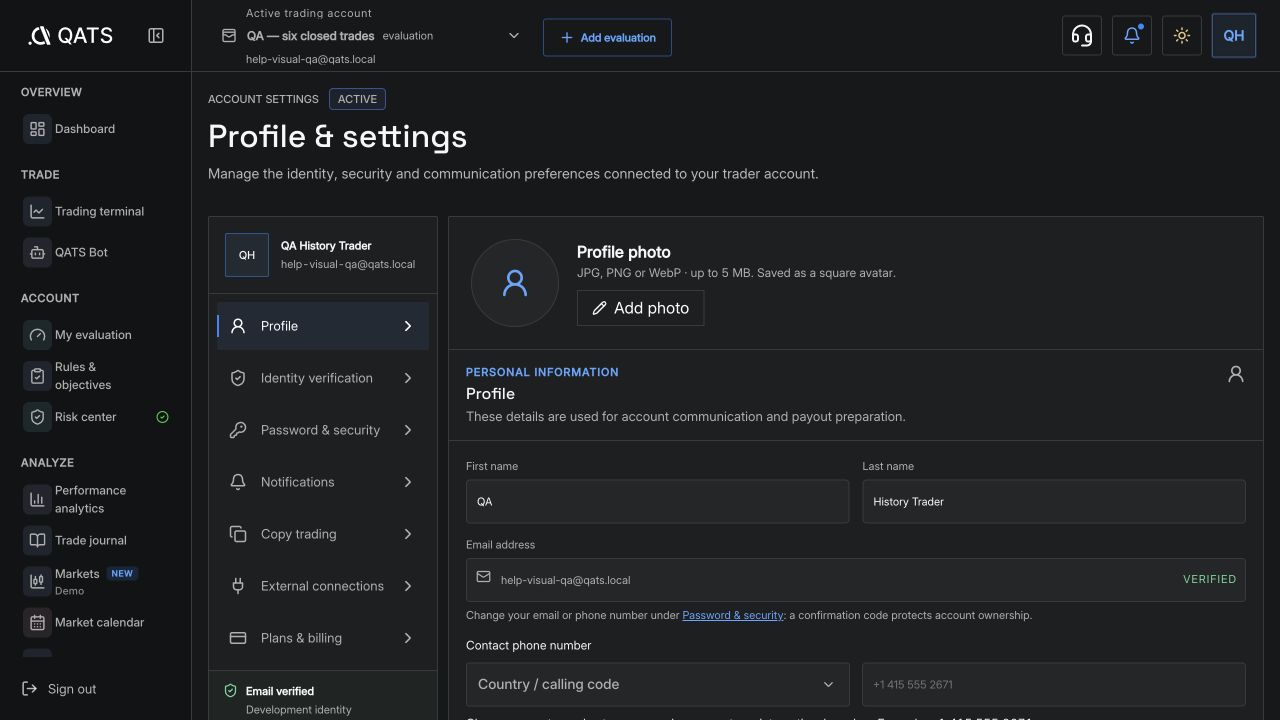
ILLUSTRATED GUIDEUpdate profile and securityProfile details, passwords, authenticator security, and display time zone.ILLUSTRATED GUIDEContact supportShare enough detail for a useful investigation without revealing secrets.ILLUSTRATED GUIDEFind current legal documentsQATS terms, trading rules, privacy, cookies, and affiliate terms.ILLUSTRATED GUIDEManage data and cookiesFind the policies and update optional settings.ILLUSTRATED GUIDEReview connected browsers, keys and webhooksSee what can trade your accounts, revoke it, and know what disconnects it automatically.ILLUSTRATED GUIDESign in with Google on the web and in the appUse Continue with Google, sign in from the QATS Trader app, and fix Google sign-in messages.

NEED MORE HELP?

We are here to help

Tell us where you got stuck. Do not send passwords, verification codes, or trading keys to support.